 By Owen Palmer
Updated November 2026
Shopping for an anker 4-port USB C hub usually comes down to one question: how many devices do you need to connect at once, and what kind of display or charging setup sits on the other end? The picks below were compared on port mix, video output, charging wattage, data speed and the kinds of setups owners most often describe, from single-monitor desks to dual-display workstations. Each one is matched to a specific need so you can skip the models that don’t fit your machine.
Our top picks at a glance
- 1
 TOP CHOICEBest overallAnkerDesktop USBC Hub, Dual Displays for Windows, Single Display for MacView on Amazon
- 2
 Best for dual monitors on a budgetMOKiN USB C Hub Multiport Adapter, Dual Extend Display for LaptopsView on Amazon
- 3
 Best for multi-device chargingBelkin Connect 4 Port USB C Hub, Multiport Adapter DongleView on Amazon
- 4
 Best for Apple laptops and iPadsSatechi USB Hub, 4-in-1 USB-C Hub for MacBook and iPadView on Amazon
Where to start: Check what your laptop or tablet outputs over USB-C before you buy. Video alt mode, Power Delivery support and whether your system is Windows, Mac or iPad will decide more than the number of ports does.
Our Top Picks
Quick Comparison
| Product | Best for | Key feature |
|---|---|---|
| AnkerDesktop USBC Hub | Dual external displays with a Windows laptop | Dual 2K display output at up to 240Hz, HDMI plus DisplayPort, Ethernet |
| MOKiN USB C Hub Multiport Adapter | Budget dual-monitor extension on Windows and Linux laptops | 4K at 60Hz over DisplayPort alt mode, 100W Power Delivery pass-through |
| Belkin Connect 4 Port USB C Hub | Charging and syncing several devices from one port | Four USB-C 3.2 Gen 2 ports at 10Gbps, 100W Power Delivery |
| Satechi 4-in-1 USB-C Hub | MacBook and iPad users who need HDMI and USB-A | 4K at 60Hz HDMI, two USB-A data ports, 100W Power Delivery |
AnkerDesktop USBC Hub, Dual Displays for Windows, Single Display for Mac
Desktop USBC Hub,Dual displays for Windows/Single display for Mac, Dual 2K@240Hz, HDMI+DP,Ethernet,2.3ft Built-in Cable,Grey Anker USB C Hub, Smart Display Hub, Docking Station Dual Monitor,No Charger
Best for: Dual external displays with a Windows laptop
This is the pick for someone who wants two external monitors and a wired network connection from one cable, and who works on a Windows machine. Owners who run a split desk with a laptop docked at home tend to value the built-in cable length and the display options.
Key specs
- Dual 2K displays at up to 240Hz on Windows
- HDMI and DisplayPort outputs
- Ethernet port
- 2.3 ft built-in cable
- No charger included
Pros
- Supports two displays on Windows, which many single-output hubs cannot do
- Ethernet port gives a stable wired connection for video calls
- Built-in cable keeps the desk tidy without a separate adapter
Cons
- Single-display output only on Mac, so it is not a dual-monitor solution there
- No charger included, so you need a compatible power adapter on hand
Bottom line: Choose this if you run two monitors from a Windows laptop and want Ethernet in the same hub.
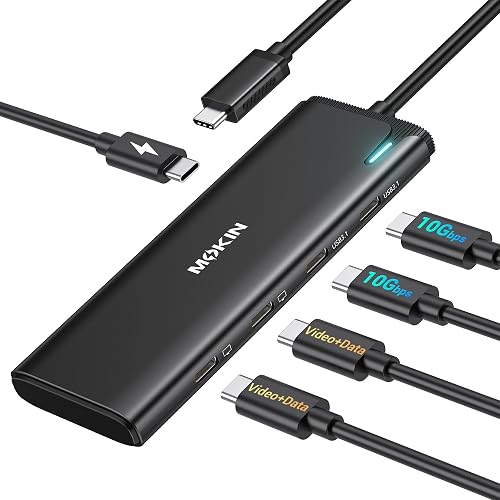
MOKiN USB C Hub Multiport Adapter, Dual Extend Display for Laptops
USB C Hub Multiport Adapter Video Output,10Gbps USB3.1 Data Transfer, 100W PD, Not for macOS Dual Extend Display MOKiN USB C Splitter for Dual Monitors 4K@60Hz DP Alt Mode for Laptops
Best for: Budget dual-monitor extension on Windows and Linux laptops
This model suits a user who wants to extend a laptop display to two external 4K screens without paying for a premium docking station. The listing states it is not intended for macOS, so Windows or Linux laptops with USB-C DisplayPort alt mode are the target.
Key specs
- 4K at 60Hz via DisplayPort alt mode
- 10Gbps USB 3.1 data transfer
- 100W Power Delivery pass-through
Pros
- Supports dual extended displays on compatible laptops
- Passes through up to 100W to keep a laptop charged while docked
- Fast data ports suit external SSDs and card readers
Cons
- Not compatible with macOS, so Mac users should look elsewhere
- Dual-display results depend on the laptop’s GPU and DisplayPort alt mode support
Bottom line: A sensible choice for Windows users who want dual 4K extension without spending much.
Belkin Connect 4 Port USB C Hub, Multiport Adapter Dongle
Belkin Connect 4 Port USB C Hub – Multiport Adapter Dongle with 4 USB C 3.2 Gen 2 Ports – High Speed 10G Data Transfer for Laptop, MacBook, iPad, PC, and More – 100W PD, Pack of 6
Best for: Charging and syncing several devices from one port
This hub is built around four USB-C ports rather than video outputs, so it fits people who mainly need to connect storage, phones, tablets or accessories and keep a laptop charged. It is listed as compatible with laptops, MacBooks, iPads and PCs.
Key specs
- Four USB-C 3.2 Gen 2 ports
- 10Gbps high-speed data transfer
- 100W Power Delivery
- Sold as a pack of six
Pros
- Four USB-C ports at 10Gbps suit fast external drives
- 100W Power Delivery covers most laptop charging needs
- Pack of six is useful for offices or classrooms standardizing on one accessory
Cons
- Port-focused design with no HDMI or DisplayPort video output listed
- Pack format is less useful for a single personal desk
Bottom line: Pick this if your main need is many USB-C connections and charging, not external displays.
Satechi USB Hub, 4-in-1 USB-C Hub for MacBook and iPad
SatechiUSB hub, 100W PD Charging, 2X USB-A Data Ports, for MacBook Air/Pro/Neo, iPad Air/Pro, Windows 4-in-1 USB-C Hub, 4K/60Hz HDMI, 100W PD Charging, Black
Best for: MacBook and iPad users who need HDMI and USB-A
This hub is aimed at Apple laptop and tablet owners who want a single HDMI output alongside USB-A ports and a charging pass-through. It is a practical match for a Mac or iPad that needs to drive one external display and connect older peripherals.
Key specs
- 4K at 60Hz HDMI output
- Two USB-A data ports
- 100W Power Delivery charging
Pros
- Covers the common Mac and iPad need of HDMI plus USB-A in one device
- 100W charging pass-through keeps a MacBook powered while in use
- Compact four-in-one layout suits travel bags
Cons
- Single external display only, so it is not a dual-monitor solution
- No Ethernet port, so wired networking needs a separate adapter
Bottom line: A good fit for MacBook or iPad owners who want one external display and USB-A without extra adapters.
Buying Guide
Video output and display count
Check whether your laptop supports DisplayPort alt mode over USB-C and how many displays it can drive. Many laptops support only one external monitor through a hub, and macOS restricts multi-display output on many models. Confirm the resolution and refresh rate you need before buying.
Good picks for this: AnkerDesktop USBC Hub, MOKiN USB C Hub Multiport Adapter
Power Delivery and charging wattage
Look at the maximum pass-through wattage and match it to your laptop charger. A 100W pass-through is a common ceiling for laptops, but the hub only delivers what the laptop requests. Note whether the hub needs its own power supply to operate.
Good picks for this: Belkin Connect 4 Port USB C Hub, Satechi 4-in-1 USB-C Hub
Port mix and data speed
Count the devices you connect daily and match the port types. USB-A ports are still useful for older keyboards and drives, while USB-C 3.2 Gen 2 ports offer 10Gbps data transfer for faster external storage. Plan for the ports you will actually use.
Good picks for this: Belkin Connect 4 Port USB C Hub, Satechi 4-in-1 USB-C Hub
Operating system compatibility
Some hubs are built for Windows, others for macOS or iPadOS. Read the compatibility notes closely. A hub listed as not for macOS will not deliver the same display behavior on a MacBook, so check before you buy.
Good picks for this: AnkerDesktop USBC Hub, Satechi 4-in-1 USB-C Hub
Cable length and desk setup
Built-in cables reduce clutter but limit placement. A 2.3 ft cable works for a desk-mounted laptop, while a longer or detachable cable helps if the hub sits on a stand or shelf. Measure the distance from your laptop to the spot where the hub will rest.
Good picks for this: AnkerDesktop USBC Hub
Durability and heat
Hubs that carry 100W of power can run warm during long sessions. Look for an aluminum or well-ventilated housing and avoid stacking it under other devices. Unplug the hub when not in use and keep it dry.
Good picks for this: Belkin Connect 4 Port USB C Hub, Satechi 4-in-1 USB-C Hub
Ethernet and wired networking
If you rely on a stable connection for video calls or large file transfers, an Ethernet port matters more than extra USB ports. Hubs without Ethernet need a separate adapter for wired internet.
Good picks for this: AnkerDesktop USBC Hub
FAQ
Does an anker 4-port USB C hub work with any laptop?
Most USB-C hubs need the laptop to support data and, for video, DisplayPort alt mode. Check your laptop’s port specifications before buying. Compatibility notes in each listing describe which systems are supported.
Can I connect two monitors through a 4-port hub?
It depends on the hub and the laptop. The AnkerDesktop USBC Hub is listed for dual displays on Windows, while the MOKiN model is listed for dual extended displays on compatible Windows and Linux systems. Dual output is usually not supported on macOS.
Do I need a power adapter for the hub?
Some hubs run entirely from the laptop, while others need an external power supply for full performance or for charging pass-through. The AnkerDesktop USBC Hub lists no charger included, so check its power requirements.
Will the hub charge my laptop while I use it?
Hubs with Power Delivery pass-through can charge a laptop while connected. The charging speed depends on the wattage the hub supports and the wattage your laptop charger provides.
What is the difference between USB-A and USB-C ports on a hub?
USB-A ports accept the older rectangular plugs found on many keyboards and drives. USB-C ports use the reversible connector and can support faster data speeds and Power Delivery. A hub with both lets you connect older and newer devices.
Is a USB-C hub the same as a docking station?
Not exactly. A hub adds ports to a single laptop connection, while a docking station usually offers more ports, larger power delivery and sometimes more display outputs. Consider your needs before choosing between them.
Conclusion
For most desks with a Windows laptop and two monitors, the AnkerDesktop USBC Hub is the most complete option because of its dual display support and Ethernet port. The MOKiN model is a reasonable alternative if you need dual extended displays and want a simpler, port-focused build. The Belkin pack suits users who mainly need multiple USB-C connections and charging, while the Satechi hub fits MacBook and iPad owners who want HDMI and USB-A. Match the hub to your operating system and video needs first, then compare ports.
Sources
- General guidance on electronics safety and consumer product information (usa.gov)
- Background on power efficiency and charging standards relevant to USB Power Delivery devices (energy.gov)
Related reading
- Anker Nano USB-C Hub: Setup, Ports and Troubleshooting Guide (2026)
- USB-C Hub with Ethernet Port: How to Choose and Set One Up
- StarTech 4 Port USB C Hub Review (2026): Features, Pros and Cons
- Lenovo USB-C to 4 Port USB-A Hub Review (2026)
- 6 Best USB C Hubs with USB C Ports for Laptops in 2026
- 6 Best J5create USB-C Multi Port Hub Picks for Laptops and Tablets (2026)
- 5 Best Anker USB C Hub 10 in 1 Monitor Stand Picks (2026)
- 4-Port USB-C Hub with Power Delivery: How to Choose and Set One Up (2026)
About Owen Palmer
Owen Palmer is part of our editorial team and reviews and edits our consumer tech how-to & troubleshooting guides, checking product details against manufacturer specifications and owner feedback.