By Owen Palmer
Updated November 2026
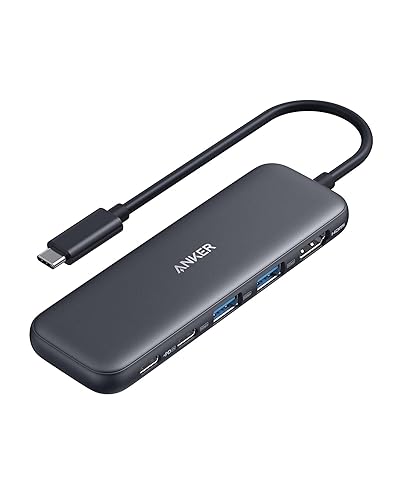
An anker nano usb-c hub is a compact adapter that adds extra ports to a laptop or tablet with a single USB-C connector. This guide covers how to connect it, confirm each port works, and track down the most common reasons a port stops responding. Most issues come down to cable choice, power supply or a port that expects more bandwidth than the hub can pass through.
Step 1: Confirm Your Device Supports USB-C Data and Video
Before you plug anything in, check whether your computer’s USB-C port supports data transfer and display output. Some phones and budget laptops only use USB-C for charging. In that case, the hub will power on but its data ports may stay silent. Look for a small USB or Thunderbolt logo beside the port in your device manual, or check the manufacturer’s specifications page.
Shopping for one? See our guide: USB C Ethernet Hub vs Wi-Fi Dongle (2026): Which Is Better for Wired Internet?.
Step 2: Connect the Hub and Test Each Port Type
Plug the hub directly into a USB-C port on the computer, not into a monitor or a second adapter. Then test each port type one at a time:
- Connect a USB-A device such as a mouse or flash drive and confirm it appears in your file manager or system settings.
- Connect a USB-C storage device or dock to the USB-C data port, if the hub has one.
- Connect your display through the HDMI or other video port and set the resolution in display settings.
- If your model has an SD or microSD slot, insert a card and check that it mounts.
Test one port at a time. If one fails, the problem is usually that port’s cable or device, not the whole hub.
Step 3: Diagnose Port Failures
When a port stops working, narrow the cause in this order:
- Cable: Swap in a known-good cable. Charge-only USB-C cables can look fine but carry no data, which is a frequent culprit. See Why a USB-C Cable or Port Doesn’t Work: Charge-Only Cables, Alt Mode and E-Marked Cables for a deeper breakdown.
- Power: Hubs that draw power from the computer can drop devices when several are connected at once. If your model has a power input, plug it in. Charging-rated USB-C chargers that meet your laptop’s wattage help too; Understanding USB-C Charger Wattage and Power Delivery explains the numbers.
- Bandwidth: Several high-speed devices sharing one connection will slow each other down. Move a large external drive to a different port or disconnect a display to check.
- Driver or update issues: Restart the computer after connecting the hub, then check for operating system updates that affect USB or display drivers.
Step 4: Choose the Right Hub for Your Setup
If your problems keep recurring, compare the hub’s port layout with what you actually use. A hub built for a monitor and storage will not suit someone who needs wired internet. For a wired connection, USB-C Hub with Ethernet Port: How to Choose and Set One Up covers what to look for. For a larger desk setup, USB-C Hub vs Docking Station (2026): Which Is Better for Your Setup? helps you decide whether a dock makes more sense.
Common Mistakes
- Plugging the hub into a monitor’s USB-C port instead of the computer.
- Assuming a faulty port means a faulty hub before trying another cable.
- Running a power-hungry drive and a display at full load on a hub that is not externally powered.
- Ignoring a missing or limited USB-C data port on the host device.
Recommended Gear
- A known-good USB-C data cable: Keeps you from blaming the hub for a cable problem. View on Amazon
- A USB-C charger matched to your laptop: Gives the hub stable power when it needs it. View on Amazon
FAQ
Why does my anker nano usb-c hub charge my laptop but not show my USB devices?
Charging uses the power pins, while data needs separate connections. A charge-only cable or a host port without data support will produce this exact symptom. Try a different cable and a different USB-C port on the computer.
Do I need to plug the hub into the wall?
Only if the device is power-hungry or your model specifies external power. Check the product documentation before assuming it runs fully on the computer’s supply.
Why does the display flicker or stay blank?
Display output depends on the host port supporting video through USB-C and on the cable. Confirm the port supports display output, reseat the video cable and set a lower refresh rate to test.
Conclusion
Most anker nano usb-c hub problems trace back to the cable, the host port or power supply, and each can be checked in minutes. Test ports one at a time, swap cables before replacing hardware, and match the hub to what you actually plug in. If a port still fails after these steps, contact the manufacturer or a qualified repair technician.
Related reading
Ready to choose one?
About Owen Palmer
Owen Palmer is part of our editorial team and reviews and edits our consumer tech how-to & troubleshooting guides, checking product details against manufacturer specifications and owner feedback.