 By Owen Palmer
Updated November 2026
If you are looking for an anker usb c hub for macbook 7 in 2 setup, the question usually comes down to ports: how many you actually need, whether you want HDMI or DisplayPort video, how much power the hub should pass through to your laptop, and whether you need an SD card reader. This guide compares five Anker hubs that fit those needs. Our selection criteria were port layout and count, video output and resolution support, power delivery rating, compatibility with MacBook models, and recurring owner feedback about heat, stability and driver behavior. We did not test these hubs ourselves; the comparisons below rely on manufacturer specifications and patterns that owners commonly report.
Our top picks at a glance
- 1
 TOP CHOICEBest overallAnker Thunderbolt 4 Compatible 7-in-2 Mac DockView on Amazon
- 2
 TOP CHOICEBest for single-display Mac setupsAnker 7-in-1 USB C Hub with 85W Max PDView on Amazon
- 3
 TOP CHOICEBest for older Thunderbolt 3 laptopsAnker 7-in-2 USB C Hub with 100W Power DeliveryView on Amazon
- 4
 Best budget pickAnker 5-in-1 USB C Hub with 85W Max PDView on Amazon
- 5
 Best for dual-monitor desksAnker Desktop USB C Hub with Dual 2K DisplaysView on Amazon
Our Top Picks
Quick Comparison
| Product | Best for | Key feature |
|---|---|---|
| Anker Thunderbolt 4 Compatible 7-in-2 Mac Dock | Modern MacBook Pro and Air owners wanting one-cable desk setups | 4K@60Hz HDMI with Thunderbolt 4 compatibility |
| Anker 7-in-1 USB C Hub with 85W Max PD | Users who need pass-through charging and SD/TF card access | 85W Power Delivery pass-through plus 4K HDMI |
| Anker 7-in-2 USB C Hub with 100W Power Delivery | Owners of Thunderbolt 3 MacBooks who want a full port set | 100W Power Delivery pass-through and SD/microSD reader |
| Anker 5-in-1 USB C Hub with 85W Max PD | Light users who need HDMI, USB-A and charging only | Compact 5-port layout with 85W pass-through |
| Anker Desktop USB C Hub with Dual 2K Displays | Dual-monitor desks and hybrid Windows/Mac use | Dual 2K@240Hz HDMI plus DisplayPort and Ethernet |
Anker Thunderbolt 4 Compatible 7-in-2 Mac Dock
Thunderbolt 4 Compatible, USB-C and 2 USB-A 5Gbps Data Ports, for MacBook Pro, MacBook Air M4/M5 and More (Not Work with Neo) Anker USB-C Hub for MacBook, 7-in-2 Mac Dock with 4K@60Hz HDMI
Best for: Best overall
This hub suits MacBook Pro and MacBook Air owners, including newer M4 and M5 models, who want one connection to handle display, storage and peripherals. The listing notes it does not work with the MacBook Neo, so confirm your model before buying.
Key specs
- USB-C and 2 USB-A ports rated at 5Gbps
- 4K@60Hz HDMI output
- Thunderbolt 4 compatibility
Pros
- Full 4K@60Hz HDMI output for external monitors
- Thunderbolt 4 compatibility suits recent MacBook designs
- Compact dock footprint for desk use
Cons
- Not compatible with MacBook Neo
- Pricing tier sits in the premium range for hubs of this type
Bottom line: The best fit for a current MacBook Pro or Air owner who wants a clean, single-cable desk setup and does not need the MacBook Neo.
Anker 7-in-1 USB C Hub with 85W Max PD
Anker1 USB-C and 2 USB-A 5Gbps Ports, 85W Max PD, SD/TF, for MacBook Air, MacBook Pro, XPS and More (Charger Not Included) USB C Hub, 7-in-1 Multi-Port USBC Hub, 4K HDMI USB-C Adapter
Best for: Best for single-display Mac setups
This hub fits people who work from a laptop with one external monitor and want charging passed through the hub. The listing names support for MacBook Air, MacBook Pro and several Windows ultrabooks, and notes that the charger is sold separately.
Key specs
- 1 USB-C and 2 USB-A ports at 5Gbps
- 85W maximum Power Delivery pass-through
- 4K HDMI output and SD/TF card slots
Pros
- 85W pass-through charging for most MacBook Air and Pro models
- SD and TF readers cover photography workflows
- Broad compatibility with other laptop brands
Cons
- Charger must be purchased separately
- Single HDMI output limits multi-monitor setups
Bottom line: A strong pick for a laptop-centric desk with one display, card-reader needs and a charger you already own.
Anker 7-in-2 USB C Hub with 100W Power Delivery
(Used) Anker USB C Hub for MacBook, 7-in-2 USB C to C Adapter, Compatible with Thunderbolt 3 Port, 100W Power Delivery, 4K HDMI, USBC& 2 USB-A Data Ports, SD and microSD Card Reader
Best for: Best for older Thunderbolt 3 laptops
This hub is aimed at owners of Thunderbolt 3 MacBook Pro models who want a full set of ports and high-wattage charging. Because the listing is for a used-category unit, check the seller’s condition notes before ordering.
Key specs
- 100W Power Delivery pass-through
- 4K HDMI output
- 2 USB-A data ports plus USB-C, with SD and microSD readers
Pros
- 100W pass-through suits higher-power MacBook Pro models
- Covers SD and microSD cards in one unit
- Thunderbolt 3 compatibility for older USB-C MacBooks
Cons
- Listed in a used condition category, so cosmetic wear is possible
- Larger footprint than the 5-port alternatives
Bottom line: Best for owners of Thunderbolt 3 MacBooks who want maximum charging wattage and a card reader, and who are comfortable with a used-condition unit.
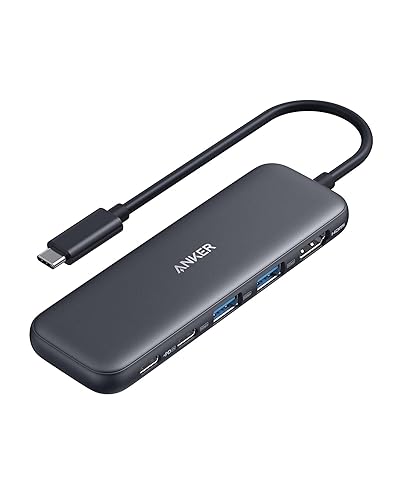
Anker 5-in-1 USB C Hub with 85W Max PD
Anker85W Max PD, 1 Powered USB-C 5Gbps & 2 Powered USB-A 3.0 5Gbps Data Ports, for MacBook Pro, MacBook Air, Dell and More (Black) USB C Hub, 5-in-1 USBC to HDMI Splitter with 4K Display
Best for: Best budget pick
This hub suits students and light users who need HDMI, two USB-A ports and charging, but not card readers or extra USB-C ports. It is a simpler, more compact option than the 7-port models.
Key specs
- 1 powered USB-C 5Gbps and 2 powered USB-A 3.0 5Gbps ports
- 85W Max Power Delivery pass-through
- 4K display output via HDMI
Pros
- Compact five-port layout that takes up little desk space
- 85W pass-through covers most MacBook Air models
- Simpler design means fewer ports to troubleshoot
Cons
- No SD or microSD card reader
- Only one HDMI output
Bottom line: The right choice if you want a lean, dependable hub for HDMI, USB devices and charging without paying for ports you will not use.
Anker Desktop USB C Hub with Dual 2K Displays
Desktop USBC Hub,Dual displays for Windows/Single display for Mac, Dual 2K@240Hz, HDMI+DP,Ethernet,2.3ft Built-in Cable,Grey Anker USB C Hub, Smart Display Hub, Docking Station Dual Monitor,No Charger
Best for: Best for dual-monitor desks
This dock suits people running two external displays, or switching between a Windows machine and a Mac. The listing states it drives dual displays on Windows and a single display on Mac, which matters if you expect two monitors on a MacBook. It ships without a charger.
Key specs
- Dual 2K@240Hz output via HDMI and DisplayPort
- Ethernet port
- Built-in 2.3 ft cable
Pros
- Dual-display support on Windows machines
- Wired Ethernet port for stable network connections
- Built-in cable reduces clutter at the desk
Cons
- Only one display on Mac, which limits MacBook dual-monitor use
- No charger included
Bottom line: A good dock for a shared Windows and Mac desk or a Windows laptop with two monitors. If you are buying for a MacBook alone, one of the single-display hubs above is a better match.
Buying Guide
Port count and layout
Count the devices you plug in daily before comparing hubs. A typical setup includes one display, one or two USB-A peripherals, a card reader and a charging cable. Five ports cover most light workflows, while seven-port layouts add card readers or a second USB-C port.
Good picks for this: Anker 5-in-1 USB C Hub with 85W Max PD; Anker 7-in-1 USB C Hub with 85W Max PD
Video output and display support
Check the maximum resolution and refresh rate your monitor supports, then confirm the hub matches it. Manufacturers often list 4K@60Hz as the common ceiling for HDMI on single-display hubs. Dual-display models depend on the host operating system, so read the notes for Mac behavior carefully.
Good picks for this: Anker Thunderbolt 4 Compatible 7-in-2 Mac Dock; Anker Desktop USB C Hub with Dual 2K Displays
Power delivery rating
Pass-through charging is rated in watts. Match the hub’s rating to your laptop’s charger, not to the lowest number you can find. Owners of higher-power MacBook Pro models generally look for 85W or 100W pass-through. Hubs rated lower may charge more slowly under load.
Good picks for this: Anker 7-in-2 USB C Hub with 100W Power Delivery; Anker 7-in-1 USB C Hub with 85W Max PD
Compatibility with your MacBook model
Confirm your exact model and chip generation. Some docks are explicitly not compatible with certain MacBook lines, so read the compatibility statement in the listing. Thunderbolt 3 and Thunderbolt 4 hubs behave differently when paired with older USB-C ports.
Good picks for this: Anker Thunderbolt 4 Compatible 7-in-2 Mac Dock; Anker 7-in-2 USB C Hub with 100W Power Delivery
Card reader needs
If you import photos or video from SD cards, a built-in SD and microSD reader saves a separate adapter. Hubs without a reader are fine for most office and streaming setups.
Good picks for this: Anker 7-in-1 USB C Hub with 85W Max PD; Anker 7-in-2 USB C Hub with 100W Power Delivery
Desk footprint and cable length
Measure your desk space and consider where the hub will sit. Compact five-port models fit beside a laptop stand, while dock-style units suit a permanent spot. Built-in cables reduce the number of separate connections you need to manage.
Good picks for this: Anker 5-in-1 USB C Hub with 85W Max PD; Anker Desktop USB C Hub with Dual 2K Displays
Heat and durability
Hubs that pass through high wattage and drive displays can get warm. Owners commonly report better stability when the hub sits on a hard surface with airflow around it, and when it is connected directly to the laptop rather than through a second adapter. Keep the unit away from soft bedding and enclosed spaces.
Good picks for this: Anker Thunderbolt 4 Compatible 7-in-2 Mac Dock; Anker 7-in-2 USB C Hub with 100W Power Delivery
FAQ
Does the Anker 7-in-2 hub work with every MacBook?
No. Compatibility depends on the port standard and the model. The Thunderbolt 4 dock is explicitly not compatible with MacBook Neo, so check the listing against your exact model before purchase.
Do I need to buy a charger separately?
Some models, such as the 7-in-1 hub with 85W Max PD, do not include a charger. You will need a USB-C charger rated at or above the hub’s pass-through wattage. The Desktop dock also ships without a charger.
Can I connect two monitors to a MacBook through these hubs?
Most single-display Mac hubs drive one external screen. The Desktop dock lists dual-display support on Windows and a single display on Mac, so plan for one external monitor on a MacBook unless the listing states otherwise for your model.
What is the difference between a 5-port and a 7-port hub?
The 5-port model covers HDMI, USB-A and charging. The 7-port models add SD and microSD readers and, in some cases, an extra USB-C port. Choose the larger hub only if you use the card reader regularly.
Why does my hub get warm during use?
Warmth is normal under heavy load, especially when charging and driving a display at once. Owners often report that placing the hub on a hard surface with airflow and avoiding stacked devices keeps temperatures steadier.
Which hub should I choose for a Thunderbolt 3 MacBook?
The 7-in-2 model with 100W Power Delivery is listed for Thunderbolt 3 ports and higher-wattage charging. Confirm your laptop’s port type before buying.
Conclusion
For most current MacBook Pro and Air owners, the Thunderbolt 4 compatible Mac dock is the strongest all-around choice, provided your model is supported. If you mainly need a single display, charging and card readers, the 7-in-1 hub with 85W pass-through fits well. Owners of older Thunderbolt 3 MacBooks who want maximum wattage may prefer the 100W 7-in-2 hub. The 5-in-1 model is the best budget pick for light use, and the dual-display dock suits Windows-heavy or shared desks. Match the hub to your port needs, charging wattage and display setup rather than picking on port count alone.
Sources
- Official USB specifications, including port types, data rates and USB Power Delivery standards
- Guidance on electronics efficiency and safe use of power adapters and chargers (energy.gov)
- Apple's technical specifications for MacBook ports, display output and charging
Related reading
- Anker Nano USB-C Hub: Setup, Ports and Troubleshooting Guide (2026)
- 6 Best USB-C Hubs for MacBook Air (2026): Our Top Picks
- 5 Best Anker USB C Hub 10 in 1 Monitor Stand Picks (2026)
- 4 Best USB C Hubs for MacBook Picks Compared (2026)
- 4 Best Macbook USB Type C Hub Picks for Every Setup (2026)
- Wirecutter USB C Hub: 5 Best Picks Compared (2026)
- Usb-c Hub for Steam Deck: What to Buy, What to Avoid, and Why
About Owen Palmer
Owen Palmer is part of our editorial team and reviews and edits our consumer tech how-to & troubleshooting guides, checking product details against manufacturer specifications and owner feedback.