 By Owen Palmer
Updated November 2026
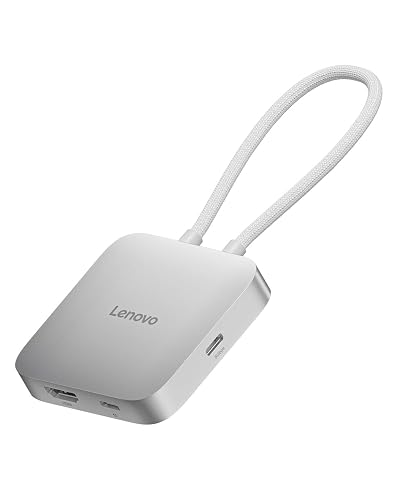
The hiearcool usb type-c hub pro is a multi-port USB-C adapter that expands one laptop or tablet port into several connections for storage, displays, peripherals and power. This guide walks you through identifying what your hub actually offers, connecting it correctly, diagnosing the most common problems and deciding whether it fits your desk. By the end, you should be able to get every port working or know exactly why one is not.
Step 1: Confirm What Your Hub Actually Does
Before you plug anything in, read the product label and manual for the specific model you own. USB-C hubs vary widely, and two units that look identical can differ in how many ports carry data, which ones support video output and whether power pass-through is included. Treat the specifications printed on the hub or its packaging as the source of truth, not assumptions from a photo listing.
Shopping for one? See our guide: USB Hub USB Type C: USB-A Hub vs USB-C Hub (2026): Which Should You Choose?.
- Port count and type (USB-A, USB-C data, HDMI, SD or microSD, Ethernet, 3.5 mm audio)
- Maximum video resolution and refresh rate for any HDMI or display output
- Whether there is a USB-C power delivery (PD) input and its maximum wattage
- Data transfer generation for USB-A and USB-C ports (for example, USB 3.x versus USB 2.0)
Step 2: Check Your Host Device Compatibility
A hub can only deliver what your computer or tablet can receive. The host device is the bottleneck in most setups, so check its USB-C port before you blame the hub. Look for the following on your laptop or tablet’s spec sheet:
- Does the port support data, not just charging? Some phone and tablet USB-C ports are power-only.
- Does it support DisplayPort Alt Mode or Thunderbolt? This is required for video output over USB-C.
- Does it support USB Power Delivery? Needed if you want to charge the laptop through the hub.
If you are connecting to an Apple device, the same logic applies. Our guide on USB C Hub for iPad: How to Choose the Right One (Step-by-Step) covers the iPad-specific limits in more detail.
Step 3: Connect the Hub the Right Way
Power the Hub First if It Needs It
Many multi-port hubs require their own power input. If the hub has a barrel or USB-C power port, connect the included adapter before plugging the hub into your computer. Some hubs draw power from the host device alone, but when the load from several peripherals exceeds the host’s budget, ports drop out or external drives disconnect.
Insert the Host Cable Securely
Seat the USB-C cable fully in the hub and the host port. A partially seated connector can cause intermittent detection. Avoid daisy-chaining through a second hub unless the manufacturer explicitly supports it.
Attach Peripherals One at a Time
Connect each device, then confirm it appears in your operating system before adding the next. This makes it much easier to tell which port or device causes a fault.
Step 4: Diagnose Common Problems
When something fails, work through the likely causes in order. Most problems fall into four categories.
| Symptom | Likely cause | Fix to try |
|---|---|---|
| No display on external monitor | Host lacks video over USB-C, or cable is USB 2.0 only | Confirm host supports DisplayPort Alt Mode; try a known-good HDMI cable; update graphics driver |
| USB device disconnects randomly | Insufficient power or loose connection | Use the hub’s power adapter; reseat the cable; move the device to another port |
| Ethernet connects but is slow | Port is USB 2.0 or the cable is Cat5 | Use a Cat6 cable; check the Ethernet port speed on the hub spec sheet |
| Laptop not charging through hub | Hub lacks PD pass-through or the charger is underpowered | Confirm PD input rating; use a charger that meets the laptop’s wattage requirement |
| SD card not recognized | Card reader slot is dusty or card is incompatible | Reinsert card fully; test with another card; format in the host system |
Update Drivers and Firmware
Operating system updates often fix USB stack issues. Check your laptop manufacturer’s support page for chipset and USB controller updates. Some hubs also use manufacturer firmware, though many are plug-and-play with no separate update process.
Test on a Second Device
If the hub fails on your laptop but works on another computer, the problem is probably the host port or its drivers. If it fails on every device, the hub itself is more likely at fault and may need an exchange.
Step 5: Set Up Your Display and Power Correctly
For a dual-screen or single-monitor setup, open your display settings after connecting the hub and confirm the external monitor is detected. Set the resolution and refresh rate to match what the monitor supports, and make sure the cable carries the correct signal type. If you need the hub to charge your laptop at the same time, check the wattage the hub passes through and compare it against your laptop charger’s rating. Underpowered charging will drain the battery even while the hub is connected.
Common Mistakes
- Assuming every USB-C port on the host supports video. Many do not.
- Running a power-hungry external drive and a monitor from a hub without its power adapter.
- Using an old HDMI or Ethernet cable and blaming the hub for a bandwidth limit.
- Connecting multiple hubs in a chain, which often reduces performance and reliability.
- Skipping the operating system update and then assuming the hardware is faulty.
Tips for Getting the Most From a Multi-Port Hub
- Keep the hub close to the host device and use a short, good-quality cable.
- Route high-bandwidth devices, such as external SSDs, to the fastest USB port the hub offers.
- Label cables so you can reconnect quickly after moving your desk.
- Consider a dedicated docking station instead if you need more than four or five peripherals permanently attached. Our comparison of USB-C Hub vs Docking Station (2026): Which Is Better for Your Setup? explains the tradeoffs.
Recommended gear
These accessories help with the connection and diagnostic steps above.
- Cat6 Ethernet cable: A shielded Cat6 patch cable reduces the chance of Ethernet slowdowns through the hub. View on Amazon
- USB-C to USB-C cable (100W rated): A cable rated for higher power delivery helps when the hub needs to pass charging wattage to the host. View on Amazon
- High-speed HDMI 2.1 cable: Useful if you are running an external display and need a cable that matches the monitor’s resolution. View on Amazon
- USB-C hub with power delivery pass-through: If your current hub lacks charging, a model with PD pass-through may suit your workflow better. View on Amazon
FAQ
Does the hiearcool usb type-c hub pro need its own power adapter?
It depends on the model and what you connect. Check the hub’s manual. If you attach external drives or a monitor, using the adapter is the safer choice.
Why does my external monitor show nothing through the hub?
Your host device may not support video output over USB-C, or the port may be data-only. Confirm DisplayPort Alt Mode support in your device’s specifications.
Can I charge my laptop through the hub?
Only if the hub includes a power delivery pass-through port. Check the wattage rating and make sure your laptop charger meets its requirement.
Why does my USB drive disconnect randomly?
This is usually power-related or caused by a loose connection. Use the hub’s power adapter, reseat the cable and try a different port on the hub.
Is Ethernet through the hub as fast as a direct connection?
It can be close, but the hub’s Ethernet port speed and your cable category set the ceiling. A Cat6 cable and a gigabit-rated port give the best results.
Will the hub work with a tablet?
Many tablets support USB-C hubs, but power-only ports and limited software support can restrict functions. Check the tablet’s documentation before buying.
What should I do if a port stops working?
Restart the host, reseat the cable, test on another device and update your USB drivers. If the fault persists on every device, contact the manufacturer about a replacement.
Conclusion
Most hiearcool usb type-c hub pro problems come down to four things: the host port’s capabilities, power supply, cable quality and driver state. Work through the checks in order and you will usually find the cause within a few minutes. If you consistently need more ports than a hub can handle, a docking station may be the better long-term fix. For a healthy, reliable setup, match the hub to your devices and keep the power and cables up to spec.
Related reading
- USB Type C Hub with HDMI: How to Choose and Connect One (Step-by-Step)
- StarTech 4 Port USB C Hub Review (2026): Features, Pros and Cons
- Dell Pro 32 Plus 4k Usb-c Hub Monitor P3225qe: A Practical Guide (2026)
- Dell Pro 27 Plus 4K USB-C Hub Monitor P2725QE: 4 Best Models Compared (2026)
- 6 Best Dell Pro 34 Plus USB-C Hub Monitor P3425WE Options (2026)
- 5 Best Usb Type C Hub Baseus Models for Multi-Device Setups (2026)
Ready to choose one?
About Owen Palmer
Owen Palmer is part of our editorial team and reviews and edits our consumer tech how-to & troubleshooting guides, checking product details against manufacturer specifications and owner feedback.