By Owen Palmer
Updated November 2026
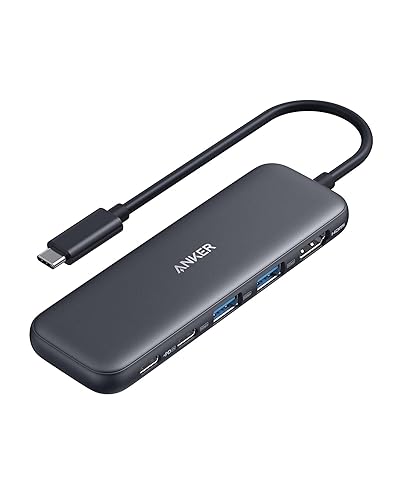
A docking system for laptop setups turns one cable into a full workstation. Plug your laptop into the dock and you get extra monitors, wired networking, USB devices and charging, all through a single connection. This guide shows you how to match a dock to your laptop, connect it correctly and fix the most common problems.
Step 1: Confirm Your Laptop Supports Docking
Not every laptop talks to every dock. Start by checking the ports on your machine. Most docks use USB-C or Thunderbolt, but the port must support video output and power delivery, not just data. Look for a small lightning bolt icon for Thunderbolt or a DisplayPort symbol on the USB-C port. If your laptop only has USB-A ports, a dock will not give you video output, and you will need a different solution. For background on the different categories, see What Is a Laptop Docking Station? A Complete Guide.
Shopping for one? See our guide: 5 Best Laptop PC Docking Station Picks for Every Setup (2026).
Step 2: Match the Dock to Your Monitors and Power Needs
Next, count the displays you want and the wattage your laptop needs when charging. Manufacturers list maximum resolution, refresh rate and total power delivery in their specifications. Check that the dock supports your monitor count at your monitor’s resolution, since some docks drop to lower resolution when multiple screens are connected. Also confirm the power delivery rating is at least as high as your laptop’s charger, or the laptop may charge slowly while docked.
Step 3: Connect and Configure Everything in the Right Order
Setup goes smoother when you follow a fixed sequence:
- Plug the dock’s power adapter into a wall outlet first.
- Connect the monitors to the dock, not to the laptop.
- Attach keyboard, mouse, Ethernet and any other peripherals to the dock.
- Connect the dock to the laptop with its single upstream cable.
- Install any driver or firmware updates the manufacturer recommends, then restart.
- Open your display settings and set each monitor’s resolution, orientation and arrangement.
Step 4: Troubleshoot Common Dock Problems
When something fails, work through the likely causes from the simplest to the most involved. The table below covers the symptoms owners report most often.
| Symptom | Likely cause | Fix to try |
|---|---|---|
| Monitor stays blank | Wrong input or cable type | Confirm the monitor input and use a cable rated for the resolution |
| Laptop charges slowly | Dock power delivery too low | Check the dock’s rated wattage against your charger |
| Ethernet drops out | Outdated network driver | Update the driver from the laptop maker’s support page |
| Dock not detected | Port lacks data or video support | Try a different USB-C or Thunderbolt port on the laptop |
If the laptop itself shows odd display artifacts after docking, the problem may be unrelated to the dock. Guides such as Why Is My Laptop Screen Green? 7 Causes and Fixes to Try cover screen-level issues in more detail.
Common Mistakes to Avoid
- Assuming a USB-C port always supports video. Check for the Thunderbolt or DisplayPort symbol.
- Plugging monitors into the laptop while also using the dock, which can split bandwidth.
- Skipping the power adapter for the dock itself, since many docks will not deliver full function on bus power alone.
- Using a cheap, unrated cable for high-resolution monitors.
- Forgetting driver updates after changing the laptop’s operating system.
Recommended Gear
- Thunderbolt-certified dock: Thunderbolt docks are designed for multi-monitor work and tend to offer the most consistent performance. View on Amazon
- USB-C video cable: A cable rated for your monitor’s resolution prevents dropped signals and flicker. View on Amazon
- Dock-compatible power adapter: Using the manufacturer’s adapter helps the dock deliver its rated power. View on Amazon
FAQ
Can any laptop use a docking system?
No. The laptop needs a USB-C or Thunderbolt port that supports video output and power delivery. Older laptops with only USB-A ports can use basic USB hubs for peripherals but not for extra monitors.
Why does my dock charge my laptop slowly?
The dock’s power delivery rating may be lower than your laptop’s charger needs. Compare the dock’s listed wattage to your charger’s output and use the dock’s own adapter if one is included.
Should I use a dock or a USB-C hub?
A dock suits a permanent desk setup with several monitors and wired networking. A hub suits occasional use, and you can compare the two in USB-C Hub vs Docking Station (2026): Which Is Better for Your Setup?.
Conclusion
A docking system for laptop setups works best when the dock matches your ports, monitors and charging needs. Confirm compatibility first, connect devices in the right order and update drivers before troubleshooting. With those steps done, one cable is all you need to get back to work.
Related reading
- Best Laptop Docking Stations
- Yellowish Tint on Laptop Screen: 6 Causes and Fixes to Try
- Yellow Screen on Laptop: 6 Causes and How to Fix Each One
Ready to choose one?
About Owen Palmer
Owen Palmer is part of our editorial team and reviews and edits our consumer tech how-to & troubleshooting guides, checking product details against manufacturer specifications and owner feedback.