Quick answer
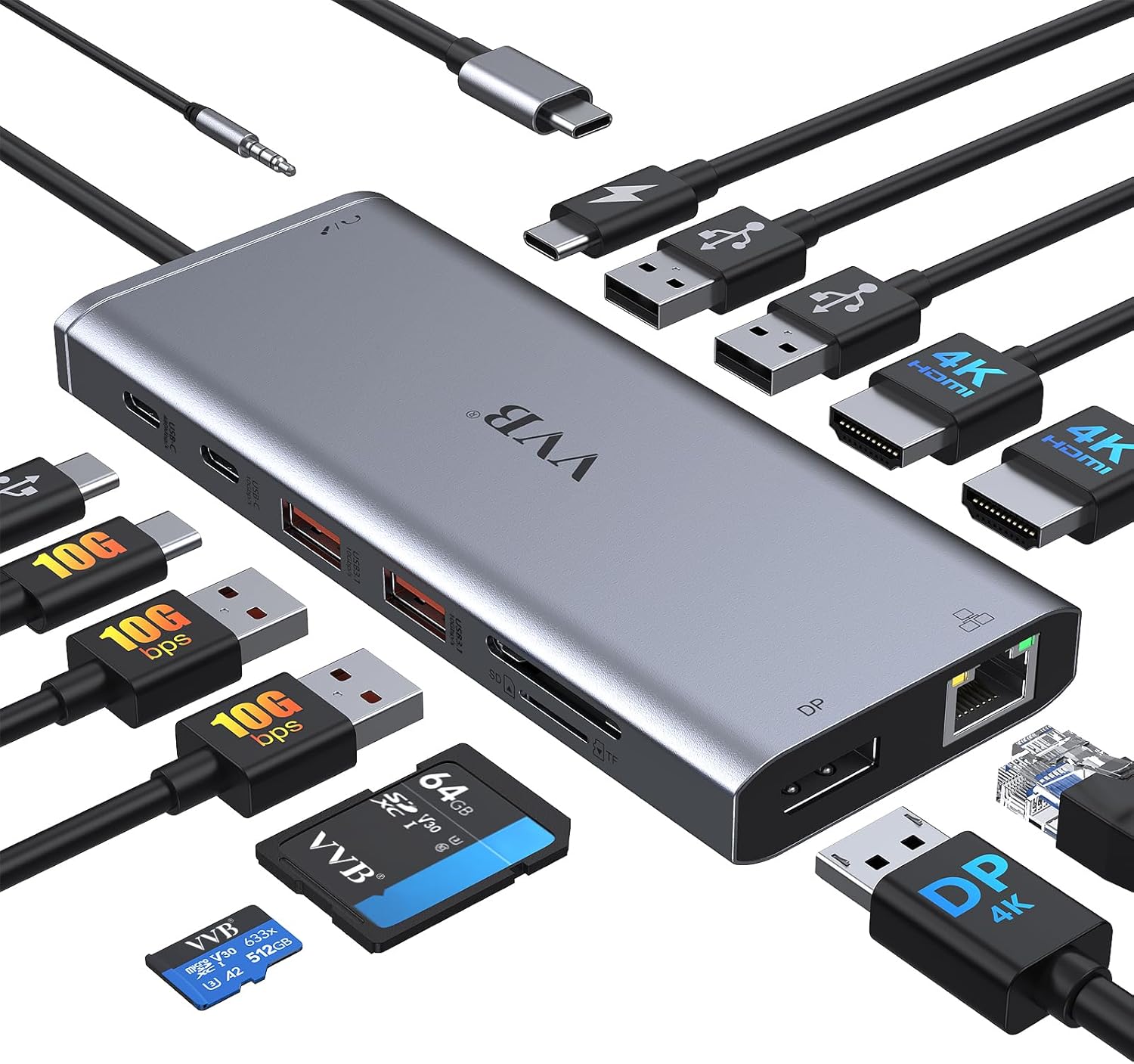
Our overall pick for a laptop docking station is the VVB 14-in-1 Dock for its extensive port selection and triple-display support for Windows. The Anker 8-in-1 hubs are strong choices for streamlined dual-monitor setups, while the MOKiN 14-in-1 Dock is best for users needing multiple DisplayPort connections.
Finding the best laptop docking station can transform a single-port laptop into a full desktop workstation. The right dock expands your connectivity for monitors, peripherals, and networking. We compared manufacturer listings and specifications to identify docks that excel in different scenarios, from maximizing port count to enabling crisp multi-monitor setups. For a deeper look at how these devices work, see our guide on what a laptop docking station is.
Our picks at a glance
Pros
- Extensive 14-port layout includes two HDMI, one DisplayPort, and Gigabit Ethernet.
- Supports triple external monitor setups for Windows.
- Includes a 100W USB-C PD port for laptop charging.
- Aluminum enclosure material is listed.
Cons
- Triple monitor support is at 1080p resolution.
- The listing notes that not all functions may be available simultaneously.
- Charger and charging cable are not included.

Pros
- Dual HDMI ports support 4K resolution.
- Includes Gigabit Ethernet and a card reader.
- Supports up to 85W laptop charging.
- Anker provides an 18-month warranty.
Cons
- Only 8 total ports, fewer than other picks.
- On macOS, external monitors only mirror; they cannot extend the desktop.
- Not compatible with Linux, per the listing.
- Charger and USB-C cable are not included.

Pros
- USB-A and USB-C data ports support 10 Gbps speeds.
- Can support dual 4K@60Hz monitors on compatible Windows systems.
- Includes SD and microSD card readers.
- Supports 85W laptop charging.
Cons
- On macOS, external monitors only mirror the display.
- Not compatible with Linux, per the listing.
- A 100W PD charger and cable are required for full charging speed and are not included.
- The listing does not mention a warranty period.

Pros
- Includes two HDMI and two DisplayPort outputs for monitor flexibility.
- Features a physical screen lock button for privacy.
- Supports triple 4K displays.
- Comes with a two-year warranty.
Cons
- The listing states it is only compatible with laptops that have Thunderbolt 3/4 ports.
- On macOS, all external monitors only mirror the display.
- Charger is not included.
- The listing does not mention the enclosure material.
How we chose
We compared manufacturer listings and specifications on Amazon as of October 2026. We did not test, use, or review these products hands-on. Our analysis focused on the number and type of ports, multi-monitor support and resolutions, power delivery capabilities, data transfer speeds, and stated operating system compatibility.
Best Laptop Docking Stations: our picks in detail
1. Best overall laptop docking station: VVB 14-in-1 USB C Docking Station
The VVB 14-in-1 USB C Docking Station offers the most extensive port selection in our comparison, including two HDMI ports, a DisplayPort, Gigabit Ethernet, and multiple USB-A and USB-C ports for data. It supports triple external displays for Windows laptops, though resolutions adjust when using multiple monitors. A dedicated 100W USB-C Power Delivery port can provide up to 87W of charging power to a compatible laptop.
The listing states compatibility with laptops that have a USB-C or Thunderbolt port with video output function, including many Dell, HP, and Lenovo models. It is constructed with an aluminum enclosure and is listed as compatible with Windows and Mac OS. The product comes with a one-year warranty.
Best for: Best for users who need the maximum number of ports and triple-monitor flexibility from a single dock.
Pros
- Extensive 14-port layout includes two HDMI, one DisplayPort, and Gigabit Ethernet.
- Supports triple external monitor setups for Windows.
- Includes a 100W USB-C PD port for laptop charging.
- Aluminum enclosure material is listed.
Cons
- Triple monitor support is at 1080p resolution.
- The listing notes that not all functions may be available simultaneously.
- Charger and charging cable are not included.
2. Best for a simple dual-monitor setup: Anker 8-in-1 USB C Hub
The Anker PowerExpand 8-in-1 USB-C Hub provides a streamlined set of essential ports, including two HDMI ports, Gigabit Ethernet, a USB-C PD charging port, two USB-A data ports, and a combined microSD/SD card reader. It supports a single 4K display at 60Hz or dual 4K displays at 30Hz. For macOS users, the listing notes that both external monitors will mirror the same content.
This hub offers up to 85W of pass-through charging for a laptop when used with a compatible 100W charger and cable, which are not included. It is compatible with Windows, ChromeOS, and macOS laptops that support DP Alt Mode and Power Delivery, but the listing states it is not compatible with Linux. The enclosure is made of ABS plastic.
Best for: Best for users who want a reliable, brand-name hub for a straightforward dual-monitor office setup.
Pros
- Dual HDMI ports support 4K resolution.
- Includes Gigabit Ethernet and a card reader.
- Supports up to 85W laptop charging.
- Anker provides an 18-month warranty.
Cons
- Only 8 total ports, fewer than other picks.
- On macOS, external monitors only mirror; they cannot extend the desktop.
- Not compatible with Linux, per the listing.
- Charger and USB-C cable are not included.
3. Best for fast data transfer on Windows: Anker Nano 8-in-1 USB C Hub
The Anker Nano 8-in-1 USB C Hub is designed for high-speed connectivity, with its USB-A and USB-C data ports supporting transfer speeds up to 10 Gbps. It features two HDMI ports that can support dual 4K monitors at 60Hz on Windows laptops with a compatible USB-C port (DP 1.4 with DSC). Like the other Anker hub, it mirrors displays on macOS.
This hub includes a USB-C upstream port, a 100W PD input port, a 10 Gbps USB-C data port, two 10 Gbps USB-A ports, the two HDMI ports, and SD/TF card slots. It supports up to 85W of pass-through charging for a laptop. It is compatible with Windows, ChromeOS, and macOS systems with full-function USB-C ports, but is not compatible with Linux.
Best for: Best for Windows users who prioritize very fast file transfers across multiple USB ports alongside dual 4K monitors.
Pros
- USB-A and USB-C data ports support 10 Gbps speeds.
- Can support dual 4K@60Hz monitors on compatible Windows systems.
- Includes SD and microSD card readers.
- Supports 85W laptop charging.
Cons
- On macOS, external monitors only mirror the display.
- Not compatible with Linux, per the listing.
- A 100W PD charger and cable are required for full charging speed and are not included.
- The listing does not mention a warranty period.
4. Best for multiple DisplayPort connections: MOKiN 14-in-1 Docking Station
The MOKiN 14-in-1 Docking Station stands out by offering two HDMI and two DisplayPort outputs, providing flexibility for multi-monitor setups that use DisplayPort cables. It supports triple 4K displays in various combinations of its video ports. The listing includes a specific note that it is only compatible with laptops that have Thunderbolt 3/4 ports.
This dock includes a 100W USB-C Power Delivery charging port, Gigabit Ethernet, multiple USB 3.0 and 2.0 ports, and SD card readers. A unique feature is a physical screen lock button to quickly turn off connected displays. It comes with a two-year warranty and is stated to be compatible with Windows and macOS, though macOS only supports mirrored displays on all external monitors.
Best for: Best for users with Thunderbolt laptops who need the flexibility of multiple DisplayPort outputs for their monitors.
Pros
- Includes two HDMI and two DisplayPort outputs for monitor flexibility.
- Features a physical screen lock button for privacy.
- Supports triple 4K displays.
- Comes with a two-year warranty.
Cons
- The listing states it is only compatible with laptops that have Thunderbolt 3/4 ports.
- On macOS, all external monitors only mirror the display.
- Charger is not included.
- The listing does not mention the enclosure material.
Docking station picks at a glance
| Model | Total Ports | Video Output Ports | Max Laptop Charging | Key OS Notes |
|---|---|---|---|---|
| VVB 14-in-1 | 14 | 2x HDMI, 1x DP | 87W | Triple display for Windows |
| Anker 8-in-1 | 8 | 2x HDMI | 85W | MacOS mirrors only; no Linux |
| Anker Nano 8-in-1 | 8 | 2x HDMI | 85W | Dual 4K@60Hz on compatible Windows |
| MOKiN 14-in-1 | 14 | 2x HDMI, 2x DP | 100W | Thunderbolt laptops only; MacOS mirrors only |
How to choose a laptop docking station
Selecting the best laptop docking station depends on matching its capabilities to your laptop’s ports and your workspace needs. The first step is to verify your laptop’s compatibility. Docks typically connect via a single USB-C port, but their functionality depends on what that port supports. Some require a port that supports DisplayPort Alt Mode for video, while others, like the MOKiN dock in our list, explicitly require a Thunderbolt 3 or 4 port. Always check the manufacturer’s compatibility list against your specific laptop model.
Next, consider your monitor setup. If you use one or two external monitors, look at the supported resolutions when all ports are in use. Some docks lower the refresh rate or resolution when driving multiple displays. Also, note that macOS often has limitations with multi-monitor docks, frequently only allowing mirrored displays instead of an extended desktop, as noted in several listings above.
Finally, tally the peripherals you need to connect. Beyond monitors, consider Ethernet for stable internet, USB ports for keyboards and hard drives, and card readers for photographers. Ensure the dock offers enough ports at the speeds you need, such as USB 3.0 for fast file transfers. Remember, a docking station consolidates many connections, so it’s a key piece of desk accessories for a clean workspace. For more on the difference between these devices and simpler hubs, see our article on USB hub vs docking station.
What to look for
- Compatibility: Confirm the dock works with your laptop’s specific USB-C or Thunderbolt port and operating system.
- Monitor Support: Check the number of video outputs (HDMI, DisplayPort) and the supported resolutions for single and multi-monitor use.
- Port Selection: Ensure it has the right number and type of ports (USB, Ethernet, audio, card readers) for your peripherals.
- Power Delivery: If you want to charge your laptop through the dock, verify its power output (e.g., 85W, 100W) and note that a compatible charger is often sold separately.
FAQ
What’s the difference between a USB hub and a docking station?
Generally, a USB hub focuses primarily on adding more USB ports for connecting devices like flash drives and mice. A docking station is more comprehensive, designed to turn a laptop into a desktop replacement by adding video outputs for monitors, Ethernet for wired internet, audio ports, and often charging capability, all through a single connection. For a detailed breakdown, read our USB hub vs docking station article.
Why won’t my MacBook extend to two different monitors with a docking station?
This is a common limitation due to macOS. As noted in the listings for the Anker and MOKiN docks, many multi-monitor docking stations only support display mirroring on macOS, meaning all connected external screens show the same content. Extended desktop functionality (where each monitor shows different apps) is often limited to a single external display or requires specific laptop and dock combinations. Always check the dock’s specifications for macOS behavior.
Do docking stations come with the power adapter to charge my laptop?
Most docking stations, including all the ones listed here, do not include a power adapter (wall charger). They have a USB-C Power Delivery (PD) input port, but you must supply your own compatible high-wattage USB-C charger and cable to enable laptop charging through the dock. The listing will typically specify the wattage required (e.g., 100W) to achieve the dock’s maximum charging output.
Can I use any docking station with any laptop?
No. Compatibility is crucial. The laptop must have a USB-C or Thunderbolt port that supports the necessary functions like video output (DP Alt Mode) and power delivery. Some docks are designed only for Thunderbolt laptops. Furthermore, operating system drivers can affect functionality. Always verify the manufacturer’s compatibility list for your specific laptop model and OS version before purchasing.
References
- Amazon product listings and manufacturer specifications (accessed October 2026)
- USB Implementers Forum. USB.org.