By Owen Palmer
Updated November 2026
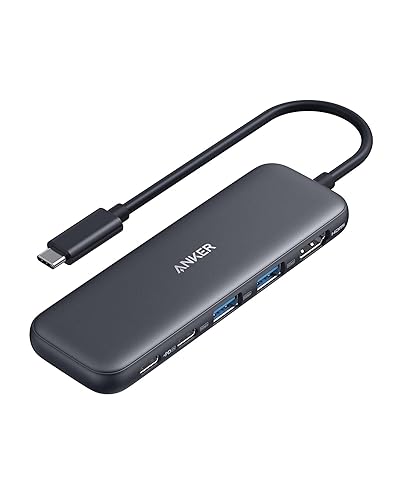
A usb-c hub with ethernet port gives a laptop, tablet or phone a wired network connection through a single USB-C socket. In this guide, you’ll find out what to check on the hub, how to confirm your port speed, and how to get a stable wired connection working in a few minutes. The short answer: match the hub’s Ethernet speed to your internet plan, confirm the USB-C port on your device supports data, and plug in.
Step 1: Check Your Device’s USB-C Port
Not every USB-C port carries data. Some phones and budget laptops use USB-C only for charging. Look for a USB-C port marked with a SuperSpeed symbol or check the manufacturer’s spec sheet for “USB 3.x” or “Thunderbolt” support. If your port is charge-only, the hub will not work, and the problem is not the hub itself. For a deeper explanation, see Why a USB-C Cable or Port Doesn’t Work: Charge-Only Cables, Alt Mode and E-Marked Cables.
Step 2: Match the Ethernet Speed to Your Internet Plan
Most hubs advertise either Gigabit Ethernet (1 Gbps) or, less commonly, 2.5 Gbps. Gigabit is enough for nearly all home and office connections. Check your internet plan first. If you pay for a 2.5 Gbps or faster service, a Gigabit hub will cap your speed, so look for a 2.5GbE model. Also confirm the hub uses a standard RJ45 port so any Ethernet cable works.
Step 3: Choose the Right Hub Layout
A usb-c hub with ethernet port usually includes other ports too. Decide what you need before buying:
- USB-A ports for older keyboards, mice or flash drives
- HDMI or DisplayPort for an external monitor
- USB-C Power Delivery pass-through so the hub can also charge your laptop
- SD or microSD slots if you transfer camera files
Power Delivery pass-through matters most. Check the wattage your laptop needs, since a hub that passes through too little power may charge slowly or not at all. More on this is covered in Understanding USB-C Charger Wattage and Power Delivery.
Step 4: Connect and Confirm the Link
- Plug the hub into your device’s data-capable USB-C port.
- Connect an Ethernet cable from your modem or router to the hub’s RJ45 port.
- Open your network settings. The Ethernet adapter should appear as a wired connection.
- Run a speed test. Compare the result with your plan, keeping in mind that Gigabit links often top out around 900 Mbps in practice.
Is a Hub Better Than a Wi-Fi Dongle?
A wired hub connection usually offers lower latency and steadier speeds than a USB Wi-Fi adapter, which matters for video calls and large file transfers. If you only need occasional access, a Wi-Fi dongle may be simpler. For a direct comparison, read USB C Ethernet Hub vs Wi-Fi Dongle (2026): Which Is Better for Wired Internet? and USB Wi-Fi Adapter vs. Ethernet Adapter: Key Differences.
Common Mistakes to Avoid
- Plugging into a charge-only USB-C port and assuming the hub is faulty.
- Buying a Gigabit hub for a 2.5 Gbps internet plan.
- Ignoring Power Delivery wattage when your laptop needs strong charging.
- Using a low-quality Ethernet cable, which can cap speeds below what the hub supports.
- Expecting full speed from a hub connected to a busy shared USB-A port on the same hub.
Recommended Gear
- StarTech 4 Port USB C Hub is a sensible choice if you want several ports with a single compact body. View on Amazon
- HP USB-C Travel Hub G3 suits people who carry a laptop between locations and want a small hub. View on Amazon
- Cat 6 Ethernet cable is worth using with any hub to support gigabit speeds reliably. View on Amazon
FAQ
Does a usb-c hub with ethernet port work with a phone?
Many Android phones and some tablets support USB Ethernet adapters, but support varies by device and software version. Check your phone’s documentation before buying, since charge-only ports will not work.
Will the hub slow down my Wi-Fi?
No. A wired Ethernet connection runs independently of Wi-Fi, so your wireless signal is unaffected while the hub is in use.
Do I need drivers for the Ethernet port?
Most hubs use built-in drivers on Windows, macOS, ChromeOS and Linux. If the connection does not appear, check the manufacturer’s site for a driver update.
Conclusion
A usb-c hub with ethernet port gives you a fast, stable wired connection with only one cable on your laptop. Confirm your USB-C port carries data, match the Ethernet speed to your plan, and check Power Delivery if you need charging. With those three checks done, setup takes only a few minutes.
Related reading
- StarTech 4 Port USB C Hub Review (2026): Features, Pros and Cons
- Lenovo USB-C to 4 Port USB-A Hub Review (2026)
Ready to choose one?
About Owen Palmer
Owen Palmer is part of our editorial team and reviews and edits our consumer tech how-to & troubleshooting guides, checking product details against manufacturer specifications and owner feedback.