 By Owen Palmer
Updated November 2026
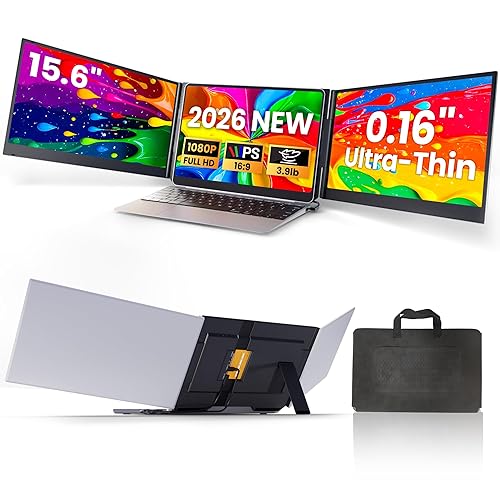
A kyy K3 portable monitor is a lightweight, USB-powered secondary screen designed to extend a laptop or phone display. This guide walks you through the physical setup, the connection options that usually work, the power and display settings that matter, and the fixes for the most common problems, including no signal and flickering. By the end, you should have a working second screen and a clear sense of whether this type of monitor suits how you work.
What You Need Before You Start
Most setup problems come from missing a cable or port, so gather everything first. Portable monitors of this class generally depend on a single cable carrying both video and power, and the wrong cable is the most frequent reason a screen stays blank. For background on how these displays get their signal and power, see Portable Monitors Explained: Connections, Power and Who Needs One.
Shopping for one? See our guide: Dell Pro 14 Plus Portable Monitor Review: Is It Worth It?.
- The cable that came in the box, or a replacement rated for both video and power
- A host device with a USB-C port that supports DisplayPort Alternate Mode (many laptops and some phones do)
- A stand or cover, if your monitor includes one or you plan to add one
- Your laptop or phone charger, if the host device also needs to stay powered
Step-by-Step Setup for the kyy K3
Step 1: Check Your Host Port
Look at the USB-C port on your laptop or phone and confirm it carries video. Many USB-C ports handle charging and data only. A port that supports video usually has a small icon of a display or the label “DP” or “Thunderbolt” near it. Your device’s manual or spec sheet will confirm this. If you are unsure, check the manufacturer’s specification page rather than guessing.
Step 2: Connect the Cable
Plug the cable into the monitor first, then into the host device. Connecting the monitor end first makes it easier to confirm the screen wakes up. Some kyy-style portable monitors show a boot logo within a few seconds; others stay dark until the host device recognizes them.
Step 3: Choose the Display Mode
On Windows, press Windows key + P and select “Extend.” On macOS, open System Settings, go to Displays, and choose an arrangement. Extend mode gives you a second workspace. Mirror mode duplicates your main screen, which suits presentations but wastes the extra space.
Step 4: Set Resolution and Scaling
Open display settings and select the monitor’s native resolution. Text on small panels can look crowded at 100% scaling, so try 125% or 150% if you struggle to read. Use the display’s native resolution when possible, since mismatched resolutions produce blurry text.
Step 5: Position the Screen
Place the monitor at or slightly below eye level, with the top edge near your natural line of sight. Keep it roughly an arm’s length away. A stand helps considerably. If you travel often, Folding Portable Monitor Stand Guide: Setup, Fit and Tips covers stands that pack down well.
Power and Connection Factors That Affect Performance
Portable monitors draw power from the host, and that draw is where many weak setups fail. The table below summarizes the factors that most often change how the screen behaves.
| Factor | What to Check | Why It Matters |
|---|---|---|
| Port type | Confirm video-capable USB-C | Charging-only ports produce no image |
| Cable quality | Use the supplied or a rated cable | Thin cables can cause flicker or dropouts |
| Power delivery | Check the host’s output wattage | Low power can cause dimming or shutdowns |
| Refresh rate | Set 60Hz unless you need more | Higher rates may stress weak connections |
| Hub use | Connect directly when possible | Unpowered hubs often lack bandwidth |
Troubleshooting Common Problems
No Signal on the Screen
Start with the cable and port, since these cause most blank screens. Reseat both ends, try a different USB-C port on the host, and confirm the port supports video. Then restart the host device. If the monitor still shows nothing, check whether it appears in your display settings. If it does not, the port or cable is the likely culprit. Owners often report that a direct connection without a hub resolves the issue. For a deeper walkthrough on blank-screen causes, see Forhelp Portable Monitor No Signal? and Portable Monitor No Signal Power Saving Mode: 7 Fixes That Work.
Flickering or Dropouts
Flicker usually points to insufficient power or a poor cable. Connect directly to the host, try a shorter cable, and lower the refresh rate to 60Hz. If the host is a phone, make sure it is charging or has enough battery, since some devices limit output when the battery is low.
Driver or Detection Issues
Most USB-C portable monitors work without a separate driver, but some setups need one. If detection fails on Windows, check Device Manager for unknown devices and update your graphics driver through the manufacturer’s site. Before installing any driver, confirm it comes from an official source.
Common Mistakes
- Plugging into a charging-only USB-C port and assuming the monitor is faulty.
- Routing the connection through a cheap, unpowered hub.
- Leaving the resolution on a mismatched setting, which blurs text.
- Expecting full brightness from a phone that is low on battery.
- Mounting the screen too low, which causes neck strain over long sessions.
Tips for Getting the Most From a Portable Monitor
- Keep the cable short and tidy to reduce tension on the port.
- Use Extend mode for productivity and Mirror mode only for presentations.
- Adjust brightness to match your main screen so your eyes do not fatigue.
- If you work with a laptop stand, verify the monitor sits stable on it before relying on it.
Recommended Gear
These items address the most common needs for this setup. Check compatibility with your specific device before buying.
- Replacement USB-C video cable: A rated cable helps prevent flicker when the supplied one is damaged or too short. View on Amazon
- Adjustable laptop stand: Raises the monitor to eye level and keeps the setup stable on a desk. View on Amazon
- Powered USB-C hub: Useful when your laptop has too few ports, provided it supplies enough power. View on Amazon
FAQ
Does the kyy K3 need a separate power adapter?
Many portable monitors in this class draw power through the video cable from the host device. Check the product manual for the specific power requirements, since some models include an optional adapter.
Will it work with a phone?
It can, if the phone supports video output over USB-C. Phone support varies widely, so confirm with the phone maker’s specifications before purchase.
Why does my screen stay black after connecting?
The most common causes are a charging-only port, a faulty cable, or a host device that is not sending a video signal. Try a direct connection and a different port first.
Can I use it as a touchscreen?
Only if the specific model includes touch support. Most standard portable monitors do not. Confirm this in the product details.
What resolution should I use?
Use the monitor’s native resolution for sharpest text. Adjust scaling in your operating system if text looks too small or too large.
Can I use it with a Mac?
Many portable monitors work with recent MacBooks through USB-C, but confirm that your Mac’s port supports video output before connecting.
How do I save power on the monitor?
Lower the brightness, turn off the display when you are not using it, and enable any power-saving options in your operating system. For a comparison of similar setups, see ViewSonic 4K Portable Monitor: 5 Best Picks Compared (2026).
Conclusion
A kyy K3 portable monitor can add a useful second screen when the connection is right. Start with a video-capable USB-C port, use a quality cable, and connect directly to the host whenever possible. If the screen stays dark or flickers, work through the cable, port and power checks in order, and the cause is usually obvious.
Related reading
Ready to choose one?
About Owen Palmer
Owen Palmer is part of our editorial team and reviews and edits our consumer tech how-to & troubleshooting guides, checking product details against manufacturer specifications and owner feedback.