By Owen Palmer
Updated November 2026
A black screen on a Dell laptop monitor usually comes down to one of three things: the wrong input source, a loose or failing video cable, or a display that never receives power. This guide walks you through checking each one in order, so you can confirm whether the problem is the monitor, the laptop, or the connection between them.
Step 1: Confirm the Monitor Is Getting Power
Start with the basics. Check that the power cable is seated firmly at both ends and that the outlet works. Press the monitor’s power button and look for the status LED. A solid or blinking light means the monitor has power. No light at all points to a power supply, outlet, or internal fault. If the LED is amber or blinking while the screen stays black, the monitor is powered but not receiving a valid video signal.
Shopping for one? See our guide: 5 Best Dell Portable Laptop Monitor Picks for Travel and Desk Use (2026).
Step 2: Check the Input Source
This is the most common cause of a black screen, and it’s easy to miss. Many Dell monitors can switch between HDMI, DisplayPort, USB-C, and VGA. If the monitor is set to an input that isn’t connected to your laptop, you’ll see nothing. Press the input or menu button on the monitor and cycle through the sources until the image appears. You can also confirm the active input in the on-screen display, usually under a menu labeled Input Source.
Step 3: Test and Reseat the Video Cable
Unplug the video cable from both the laptop and the monitor, wait about 10 seconds, and reconnect it firmly. Then work through these checks:
- Try a different port on the laptop, especially if you’re using a USB-C hub or dock.
- Swap in a known-good cable of the same type. Damaged HDMI or DisplayPort cables often fail without any visible sign.
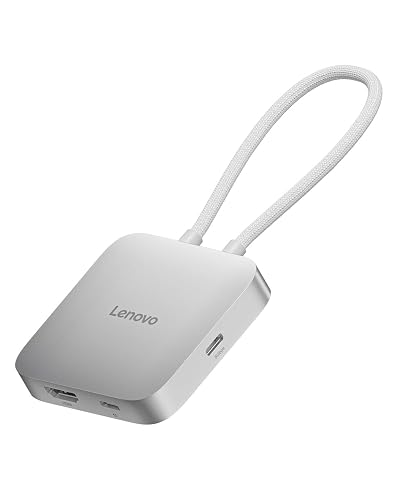
- If you use an adapter (for example, USB-C to HDMI), connect the monitor directly to the laptop to rule it out.
If the image returns on a different port or cable, the original connection was the problem.
Step 4: Force the Laptop to Output to the External Display
Laptops sometimes send video only to their built-in screen, especially after a dock is unplugged or the display settings change. On Windows, press Windows key + P and choose Duplicate or Extend. Give the laptop a few seconds to detect the monitor. If nothing appears, restart the laptop with the external monitor already connected, so the system detects it during boot.
Common Mistakes to Avoid
- Assuming the monitor is dead without first checking the input source.
- Using a USB-C port that only handles charging or data and does not support video output.
- Overlooking the laptop’s own display settings after a driver update or a dock change.
- Replacing the cable before confirming the input and port are correct.
- Skipping a full power cycle. Shut down the laptop, unplug the monitor for a minute, then start both again.
Recommended Gear
- Use a certified HDMI or DisplayPort cable of known quality when you’re testing connections, since a faulty cable is a common hidden cause. View on Amazon
- A USB-C to HDMI adapter lets you confirm whether a laptop’s USB-C port is outputting video. View on Amazon
FAQ
Why is my Dell monitor on but showing a black screen?
The monitor has power but is not receiving a valid signal. Check that it is set to the correct input and that the video cable is secure and working.
Why does my Dell laptop screen stay black when connected to a monitor?
The laptop may be sending output only to its built-in display. Press Windows key + P and select Duplicate or Extend, then restart with the monitor connected if needed.
Could a Dell laptop charger cause a black screen?
Generally no, but an underpowered charger or a dock that doesn’t deliver enough power can cause instability. If you suspect the charger, see Laptop Charger for Dell: How to Find the Right One (Step-by-Step).
Conclusion
Work through the checks in order: power, input source, cable and port, then laptop output settings. Most black screens are solved in the first three steps. If the monitor still shows nothing after every check, the panel or its power board may be failing, and a repair technician or warranty service is the next step.
Related reading
- HP Laptop Monitor Black Screen: 7 Causes and Fixes That Work
- Why Do I Have Black Pressure Marks on Laptop Screen? Causes and Fixes
- Triple Portable Monitor for Laptop 15.6-Inch: 5 Best Picks Compared (2026)
Ready to choose one?
About Owen Palmer
Owen Palmer is part of our editorial team and reviews and edits our consumer tech how-to & troubleshooting guides, checking product details against manufacturer specifications and owner feedback.