By Owen Palmer
Updated November 2026
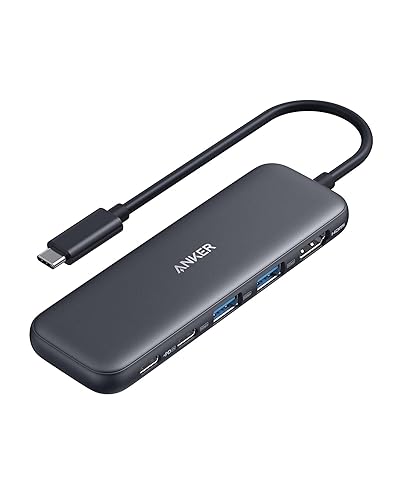
A usb-c hub for mac turns the handful of USB-C ports on a MacBook into the full set of connections you actually need: USB-A, HDMI, SD cards, Ethernet and power. This guide shows you how to match a hub to your Mac, confirm it will deliver the display and charging you expect, and avoid the problems that send most returns back to the store.
Step 1: Check What Your Mac Can Output
Before comparing hubs, look up your Mac’s specifications. Apple lists the number of Thunderbolt or USB 4 ports, the maximum external display count and resolution, and whether the machine supports video over USB-C at all. Base-model MacBook Air machines, for example, support fewer external displays than Pro models, and a hub cannot add display support the Mac does not have.
Shopping for one? See our guide: USB C Ethernet Hub vs Wi-Fi Dongle (2026): Which Is Better for Wired Internet?.
Step 2: Match the Ports to Your Daily Work
List the devices you plug in every day, then pick a hub that covers them with room to spare. Most buyers need:
- HDMI or DisplayPort for an external monitor or TV
- One or more USB-A ports for keyboards, mice and older drives
- An SD or microSD slot if you edit photos or video
- Gigabit Ethernet if you need a wired connection
- USB-C Power Delivery pass-through so the hub does not drain the laptop
If you plan to use a monitor at full resolution with a high refresh rate, confirm that the hub’s video output spec matches the monitor, not just the port shape.
Step 3: Confirm Power Delivery and Wattage
Why pass-through charging matters
A hub that accepts power through its USB-C port has to pass that charge to the Mac, which needs enough wattage to charge while the peripherals draw their own power. Check the wattage the manufacturer specifies for pass-through charging and compare it with your Mac charger’s rating. A hub rated below your charger’s output may charge slowly under load. For a deeper look at this, see Understanding USB-C Charger Wattage and Power Delivery.
Cable and port quality
Use the cable supplied with the hub or a certified USB-C cable of adequate rating. A cable that carries only charging current will not carry video or data, so a charge-only cable can look like a hub fault. Why a USB-C Cable or Port Doesn’t Work: Charge-Only Cables, Alt Mode and E-Marked Cables covers how to tell them apart.
Step 4: Connect and Test
- Plug the hub’s USB-C cable into a Mac port that supports data and video.
- Connect the power adapter to the hub’s pass-through port if it has one.
- Attach your monitor and peripherals one at a time.
- Open System Settings and confirm the display is detected and set to the right resolution.
- Run a file copy to a USB-A or SD device to confirm data speed.
Common Mistakes to Avoid
- Buying a hub without checking how many external displays your Mac supports.
- Assuming every USB-C port on the Mac carries video.
- Ignoring the pass-through wattage and then wondering why the battery drains.
- Using a cheap, unrated cable with a hub that needs data throughput.
- Mixing USB-A and USB-C hubs without checking which one fits your setup. See USB Hub USB Type C: USB-A Hub vs USB-C Hub (2026): Which Should You Choose?
Recommended Gear
- A multi-port USB-C hub with HDMI and SD card reader: useful if you connect a monitor and camera media daily. View on Amazon
- A certified USB-C to USB-C cable: helps rule out cable faults when a port seems dead. View on Amazon
- A USB-C wall charger with Power Delivery: supplies enough power for pass-through charging. View on Amazon
FAQ
Will any USB-C hub work with a MacBook?
Most hubs work for basic USB and charging, but video output depends on the Mac’s port support and the hub’s display standard. Check the Mac’s display specification before buying.
Why does my external monitor not show up?
Confirm the Mac supports the number of displays you are connecting, check the cable, and make sure the hub is plugged into a port that supports video. Restarting the Mac after connecting often helps.
Does a hub reduce battery life?
Peripherals that draw power from the Mac will use more battery. Pass-through charging helps offset this when the hub’s supply wattage is sufficient.
Conclusion
A good usb-c hub for mac starts with your Mac’s display and port limits, then adds the ports and charging your daily work needs. Test the connection once you set it up, and check the official site of the hub’s manufacturer for current specifications and compatibility details.
Ready to choose one?
About Owen Palmer
Owen Palmer is part of our editorial team and reviews and edits our consumer tech how-to & troubleshooting guides, checking product details against manufacturer specifications and owner feedback.