By Owen Palmer
Updated November 2026
A lenovo laptop monitor not working usually comes down to one of three things: the signal isn’t reaching the screen, the wrong input is selected, or the graphics driver has stopped sending a usable display signal. This guide walks you through isolating which one applies to your setup, then fixing it without replacing anything. Most cases resolve in under 20 minutes.
Step 1: Work Out Whether the Problem Is the Laptop or the Monitor
Start by determining where the fault lives. Press the Windows key, type nothing, and wait a few seconds. If you hear the Windows startup chime or see the lock screen on a second display, the laptop is running and the issue is in the connection or the external panel. If the laptop’s built-in screen also stays black, the problem is more likely internal, and Lenovo Laptop Screen Display Problem: 8 Causes and Fixes That Work covers those failure patterns in detail.
Shopping for one? See our guide: Triple Portable Monitor for Laptop 15.6-Inch: 5 Best Picks Compared (2026).
Step 2: Check the Cable and Port Connection
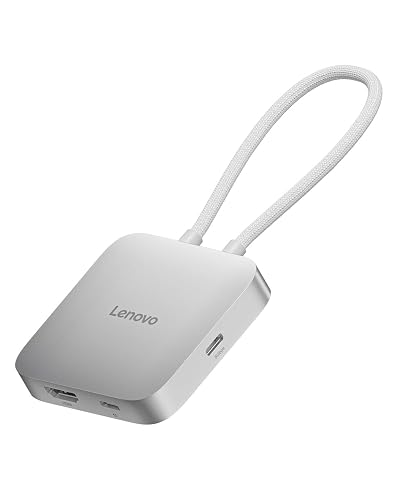
Loose or damaged cables cause more false alarms than any other issue. Unplug both ends, inspect the connector pins for bent or discolored contacts, and reseat them firmly. Try a different cable if you have one; HDMI and DisplayPort cables fail quietly, and a cable that carries power but drops video data will show a blank screen. If you’re using a USB-C dock or adapter, confirm that it supports video output and that the monitor is plugged into the correct port.
Step 3: Select the Correct Input Source on the Monitor
Many monitors stay on the last input they used, so a monitor connected to HDMI 2 will show nothing while it’s set to HDMI 1. Press the monitor’s input or source button and cycle through every option. Many monitor on-screen menus also show a message such as “No Signal” next to the active input, which helps you confirm you’ve landed on the right one.
Step 4: Force Windows to Detect the Display
If the cable and input are correct, Windows may not be sending a signal to the external display. Press Windows + P and choose Extend or Duplicate. If nothing changes, press Windows + Ctrl + Shift + B to reset the graphics driver; the screen will flicker briefly, and then the display should wake up. You can also open Settings > System > Display and click Detect under the multiple displays section.
Step 5: Update or Roll Back the Graphics Driver
A corrupted or mismatched graphics driver is a frequent cause of lenovo laptop monitor not working after a Windows update. Open Device Manager, expand Display adapters, and right-click your GPU. Choose Update driver first. If the problem began right after an update, select Properties > Driver > Roll Back Driver instead. Lenovo Vantage and the manufacturer’s support site also host system-specific drivers, which are often more reliable than generic packages.
Step 6: Check Refresh Rate and Resolution Settings
An unsupported resolution or refresh rate can make a monitor show “Out of Range” or stay dark. In Display settings, lower the resolution to 1920 x 1080 and the refresh rate to 60 Hz, then confirm the change. If the screen returns, raise the settings one step at a time until you find the highest value the monitor handles reliably.
Step 7: Test the Monitor Independently
If nothing above works, the external panel may be at fault. Connect it to a different computer or a known-good console. If it still shows nothing, the monitor needs service or replacement. Manufacturers generally recommend contacting official support before opening the panel yourself.
Common mistakes
- Assuming the cable is fine because it powers the monitor. Power and video use different wires in many cables.
- Leaving the monitor on an unused input after switching ports.
- Installing a generic driver over a Lenovo-specific one, which can break display output.
- Ignoring the laptop’s own screen; a black built-in display points to a different problem.
- Plugging into a USB-C port that handles charging only and carries no video.
Recommended gear
- Certified HDMI 2.0 cable: Replaces a suspect cable quickly and removes cable failure from your list. View on Amazon
- USB-C to HDMI adapter with video support: Useful when your Lenovo laptop uses USB-C for display output and the monitor only has HDMI. View on Amazon
- DisplayPort to HDMI cable: Lets you test alternate video paths when a DisplayPort connection fails. View on Amazon
FAQ
Why does my Lenovo laptop monitor show a “No Signal” message?
The monitor is awake but receiving no video from the selected input. Check the cable, confirm the correct input is active, and press Windows + P to make sure Windows is sending output to the external display.
Will a driver update fix my external monitor?
It can, especially after a Windows update has broken display output. Use the Lenovo-specific driver where possible and roll back if the problem started right after an update.
Can a monitor be damaged by a bad cable?
A faulty cable rarely damages a monitor, but a short or bent pin can cause intermittent signal loss. If the monitor works on another computer, the cable is the likely cause.
Conclusion
Most lenovo laptop monitor not working cases trace back to the cable, the input selection, or the graphics driver, and you can rule out each in turn. Work through the steps in order, and you’ll usually find the cause before reaching the hardware checks. If the monitor fails on a second computer, the panel itself needs professional service.
Related reading
- Surface Laptop Power Button Not Working: 7 Fixes That Work (2026)
- Microsoft Surface Laptop 3 Power Button Not Working: 7 Fixes That Work
- HP Windows 10 Laptop Keyboard Not Working? 7 Fixes That Work
- Why Won't My Lenovo Laptop Turn On? A Step-by-Step Troubleshooting Guide
- Top 7 Touch Monitors for Laptop Options with Touchscreen Support (2026)
Ready to choose one?
About Owen Palmer
Owen Palmer is part of our editorial team and reviews and edits our consumer tech how-to & troubleshooting guides, checking product details against manufacturer specifications and owner feedback.