 By Owen Palmer
Updated November 2026
A 4 in 1 USB C hub is one of the simplest ways to turn a single USB-C port into a working desk setup, adding HDMI video, extra USB-A ports and power delivery to a laptop or tablet that has too few connections. The four models below were chosen by comparing manufacturer specifications, brand reputation and the patterns owners commonly report about heat, power pass-through and display compatibility. The selection criteria were port mix, maximum power delivery wattage, 4K HDMI support, build quality and how well each hub fits common laptop and tablet types.
Our top picks at a glance
- 1
 TOP CHOICEBest overallBelkin USB C Hub, 4-in-1 Multi-Port Laptop Dock with 4K HDMI, USB C DoView on Amazon
- 2
 Best for desk setups with a monitorBENFEI USB C Hub 5-in-1 with 4K HDMI(Certified), 100W Power Delivery,View on Amazon
- 3
 Best for mobile video and camera rigsMultiport hub with Type- C, PD 100W / USB-C 3.1/2.0, for mobile ProResView on Amazon
- 4
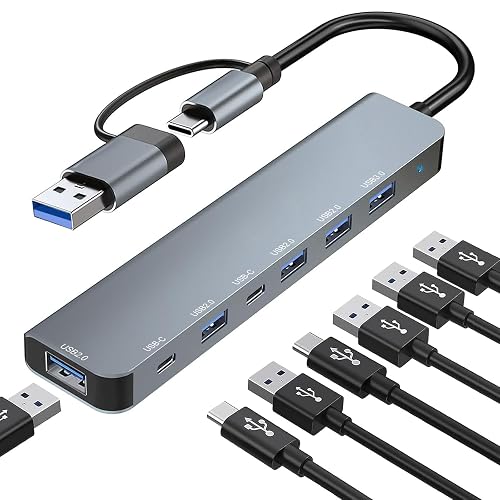 Best budget pickUSB C Hub, USB Hub 3.0 Upgrade 7 in 2 USB Splitter with 1xUSB 3.0, 4xUSB2.0, 2xUSB CView on Amazon
Our Top Picks
Quick Comparison
| Product | Best for | Key feature |
|---|---|---|
| Belkin USB C Hub, 4-in-1 Multi-Port Laptop Dock | Everyday laptop and tablet docking | 100W pass-through power delivery and 4K HDMI |
| BENFEI USB C Hub 5-in-1 with 4K HDMI | Desk setups with a monitor | 4K HDMI plus 100W power delivery |
| SmallRig 4-in-1 USB-C Hub with Cold Shoe Mount | Mobile video and camera rigs | Cold shoe mount and USB-C 3.1 data |
| USB C Hub, USB Hub 3.0 7 in 2 USB Splitter | Budget multi-port expansion | Multiple USB 3.0 and USB 2.0 ports |
Belkin USB C Hub, 4-in-1 Multi-Port Laptop Dock with 4K HDMI, USB C Docking Station with 100 Watt Pass-Through Power Delivery
Belkin USB C Hub, 4-in-1 Multi-Port Laptop Dock with 4K HDMI, USB C Docking Station with 100 Watt Pass-Through Power Delivery, 2 X USB A Ports For MacBook Pro, Air, iPad Pro, Chromebook and More
Best for: Everyday laptop and tablet docking
This model suits people who want one dependable hub for a laptop that lives on a desk, with a single cable for display, USB peripherals and charging. Its listing names MacBook, iPad Pro, Chromebook and similar devices as compatible.
Key specs
- 4K HDMI video output
- 100 W pass-through power delivery
- 2 x USB-A ports
- USB-C connection to host device
Pros
- Pass-through charging lets you power the laptop while using the hub
- 4K HDMI support covers most external monitors and TVs
- Well-known brand with broad device compatibility
Cons
- Only two USB-A ports, which may be tight with several peripherals
- Pass-through wattage depends on the charger you pair with it
Bottom line: A strong default choice for someone who wants a reliable, widely compatible hub for daily laptop use at a desk.
BENFEI USB C Hub 5-in-1 with 4K HDMI(Certified), 100W Power Delivery, 3 USB-A, Aluminum Case
BENFEI USB C Hub 5-in-1 with 4K HDMI(Certified), 100W Power Delivery, 3 USB-A, Silicone Cable, Aluminum Case Compatible with MacBook Pro/Air, iPad Pro, iMac, iPhone 15 Pro/Pro Max, XPS, Thinkpad
Best for: Desk setups with a monitor
Best suited to people who connect a external monitor and several USB devices and want a hub with three USB-A ports rather than two. The aluminum housing is designed to help with heat dissipation during longer sessions.
Key specs
- 4K HDMI output
- 100 W power delivery pass-through
- 3 x USB-A ports
- Aluminum case
Pros
- Three USB-A ports give more room for peripherals
- Aluminum body is a practical choice for heat management
- Listing covers a wide range of laptops, tablets and phones
Cons
- Owners sometimes report the hub runs warm under heavy simultaneous load
- Maximum display resolution depends on the host device’s output support
Bottom line: A good pick for a desk setup that needs one more USB port than the average hub offers.
Multiport hub with Type-C, PD 100W / USB-C 3.1/2.0, SmallRig 4-in-1 USB-C Hub with Cold Shoe Mount
Multiport hub with Type- C, PD 100W / USB-C 3.1/2.0, for mobile ProRes video recording at 4K 60fps SmallRig 4-in-1 USB-C Hub with Cold Shoe Mount
Best for: Mobile video and camera rigs
This hub is aimed at content creators who record on a phone or laptop in the field and need power, storage and a cold shoe mount for accessories. It fits people who value mounting flexibility over desktop docking features.
Key specs
- USB-C 3.1 and USB 2.0 data connections
- PD 100 W power delivery pass-through
- Cold shoe mount
Pros
- Cold shoe mount keeps accessories like lights or microphones attached
- USB-C 3.1 data supports fast external storage transfers
- Compact enough for a camera bag
Cons
- Not positioned as a full desktop dock, so fewer display options
- Its niche focus makes it less suited to general office use
Bottom line: The right choice for creators who shoot mobile video and want power, storage and mounting in one small accessory.
USB C Hub, USB Hub 3.0 Upgrade 7 in 2 USB Splitter with 1xUSB 3.0, 4xUSB2.0, 2xUSB C
USB C Hub, USB Hub 3.0, Upgrade 7 in 2 USB Splitter with 1xUSB 3.0, 4xUSB2.0, 2xUSB C, USB C & USB Hub Multiport Adapter, USBC USB Dongle for PC/Laptop/Tablet/Mac/MacBook/iPad and More Devices
Best for: Budget multi-port expansion
A budget-friendly option for people who mainly need more ports for keyboards, drives and accessories and do not require 4K video output. It works for PC, Mac and tablet users with light to moderate peripheral needs.
Key specs
- 1 x USB 3.0 port
- 4 x USB 2.0 ports
- 2 x USB-C ports
Pros
- Large number of ports for the size
- Works across several laptop and tablet types
- Good option when USB port count matters more than video
Cons
- USB 2.0 ports are much slower than USB 3.0 for storage transfers
- Listing does not highlight HDMI or 4K display output
Bottom line: Best for someone who needs more ports on a budget and is not connecting a high-resolution monitor.
Buying Guide
Port mix and what you actually need
Count the devices you plug in most often before comparing hubs. A typical setup includes a monitor (HDMI), a keyboard or mouse (USB-A), a drive (USB 3.0) and a charger. Check that the hub covers each of these without forcing you to share a port.
Good picks for this: Belkin USB C Hub, BENFEI USB C Hub 5-in-1
Power delivery wattage
Pass-through power delivery lets the hub relay charging to your laptop. Manufacturers typically list a maximum wattage, such as 100 W, but the real figure depends on your charger. A 100 W hub paired with a 65 W charger will only deliver what the charger supplies.
Good picks for this: Belkin USB C Hub, SmallRig 4-in-1 USB-C Hub
Video output and resolution
Check whether the HDMI port supports 4K at 60 Hz. Some hubs list 4K at 30 Hz only, which can look choppy with office or video work. Confirm that your laptop or tablet supports video output over USB-C before buying.
Good picks for this: BENFEI USB C Hub 5-in-1, Belkin USB C Hub
USB generation and data speed
USB 2.0 ports top out at 480 Mbps, while USB 3.0 (now often called USB 3.2 Gen 1) reaches 5 Gbps. If you move large files to external drives, prioritize USB 3.0 or faster ports over USB 2.0 ones.
Good picks for this: SmallRig 4-in-1 USB-C Hub, USB C Hub USB Hub 3.0 Splitter
Size and portability
A compact hub fits a laptop bag, but smaller bodies often run warmer and have fewer ports. If you travel often, measure your bag’s pocket and weigh the hub against the cable length you need.
Good picks for this: SmallRig 4-in-1 USB-C Hub, USB C Hub USB Hub 3.0 Splitter
Build quality and heat management
Aluminum housings generally dissipate heat better than plastic, and owners often report aluminum models feel more stable under load. Look for a sturdy cable and firm port connections, since loose ports are a common complaint on cheap hubs.
Good picks for this: BENFEI USB C Hub 5-in-1, Belkin USB C Hub
Compatibility with your device
Not every USB-C port supports video, data and charging. Check your laptop’s manual for supported USB-C features. Hubs often list compatibility with MacBook, iPad, Chromebook and Windows laptops, but confirm the specific model before you buy.
Good picks for this: Belkin USB C Hub, USB C Hub USB Hub 3.0 Splitter
FAQ
What does 4 in 1 mean on a USB C hub?
It usually means the hub adds four connection types or ports to your single USB-C port. The exact mix varies, but a 4 in 1 hub commonly includes HDMI, USB-A and USB-C data or power delivery connections.
Do I need a powered USB C hub?
A powered hub has its own power input, which helps when you connect devices that draw a lot of current, such as external drives. For a keyboard, mouse and charging, a non-powered hub is often enough.
Will a 4 in 1 USB C hub charge my laptop?
Only if it supports pass-through power delivery. Check the listed wattage and make sure your charger can supply at least that much power to get the full benefit.
Why does my monitor flicker when connected through the hub?
Common causes include a loose cable, insufficient bandwidth at the chosen resolution, or a refresh rate the hub does not support. Try a lower refresh rate or a different HDMI cable to narrow down the cause.
Is USB 2.0 fast enough for external drives?
It works for light file transfers, but it is noticeably slower than USB 3.0. For regular backups or large files, choose a hub with USB 3.0 or faster ports.
Can I use a USB C hub with a tablet?
Many tablets, including iPads and Android models, support USB-C hubs, but feature support varies by device. Check your tablet’s specifications for video output and power delivery support.
Conclusion
For most desk users, the Belkin hub is the most balanced choice, with pass-through charging and 4K HDMI. If you need an extra USB-A port for peripherals, the BENFEI model is a good fit. Creators shooting mobile video will value the SmallRig’s cold shoe mount, while the budget USB splitter works best when port count matters more than video. Match the hub to the devices you actually plug in, and confirm your laptop’s USB-C capabilities before buying.
Sources
- the official USB specifications, including data speed tiers and power delivery standards
- guidance on charging efficiency and power use for electronic devices (energy.gov)
- standards and technical background on high-speed data interfaces
Before you buy: helpful guides
Related reading
- iPad Pro USB C Hub with Power Delivery: How to Choose and Connect One (2026)
- Wirecutter USB C Hub: 5 Best Picks Compared (2026)
- Usb-c to Hdmi Hub Adapter Review: Features and Performance
- Usb C Hub for Chromecast: Does It Work and Which Setup to Use?
About Owen Palmer
Owen Palmer is part of our editorial team and reviews and edits our consumer tech how-to & troubleshooting guides, checking product details against manufacturer specifications and owner feedback.