
 By Owen Palmer
Updated November 2026
Shopping for a laptop PC docking station usually starts with a simple problem: your laptop has too few ports, and every time you sit down at your desk you end up plugging and unplugging cables. A good dock fixes that by turning one connection into power, external monitors, wired networking, and peripherals. This list focuses on five products that cover different needs, from a compact dual-monitor dock to a multi-display setup with high power delivery. The selection criteria were port count, display support, charging wattage, compatibility with common laptop brands, and recurring owner feedback about reliability. No unit here was tested by us; the comparisons draw on published specifications and patterns that owners often report.
Our top picks at a glance
- 1
 TOP CHOICEBest overallAnker Laptop Docking Station Dual Monitor, 8-in-1 USB C Hub with 4K HDMIView on Amazon
- 2
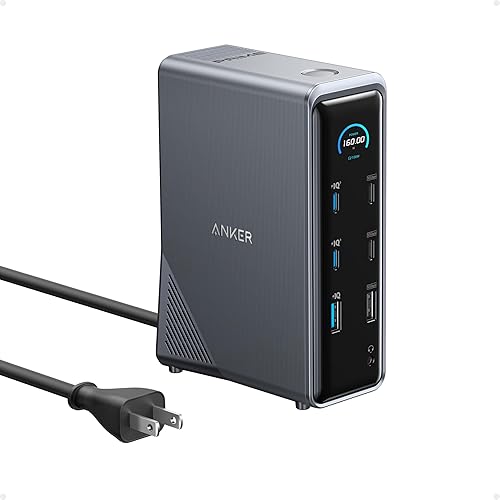 TOP CHOICEBest for premium desksAnker Prime Docking Station, 14-in-1 Laptop Docking Station Dual MonitorView on Amazon
- 3
 TOP CHOICEBest for triple monitorsAnker Laptop Docking Station, 13-in-1 USB C Docking Station, Triple DisplayView on Amazon
- 4
 Best for business fleetsDell Pro Laptop Docking Station WD25View on Amazon
- 5
 Best budget pickLIONWEI Triple 4K Docking Station Dual Monitor 13-in-1 USB C HubView on Amazon
Our Top Picks
Quick Comparison
| Product | Best for | Key feature |
|---|---|---|
| Anker Laptop Docking Station Dual Monitor, 8-in-1 USB C Hub with 4K HDMI | Small desks and everyday office work | Dual HDMI output with 85W charging |
| Anker Prime Docking Station, 14-in-1 Laptop Docking Station Dual Monitor | High-performance setups | 160W total output and 10Gbps data transfer |
| Anker Laptop Docking Station, 13-in-1 USB C Docking Station, Triple Display | Triple-monitor workstations | Two HDMI plus one DisplayPort |
| Dell Pro Laptop Docking Station WD25 | Managed business environments | Quad display support and Dell compatibility |
| LIONWEI Triple 4K Docking Station Dual Monitor 13-in-1 USB C Hub | Budget-minded multi-monitor users | Triple 4K display support with 100W PD |
Anker Laptop Docking Station Dual Monitor, 8-in-1 USB C Hub with 4K HDMI
Dual HDMI USB C Dock, 1Gbps Ethernet, 85W Max PD, SD/TF Card Reader, for USB C Laptops, XPS and More (Charger Not Included) Anker Laptop Docking Station Dual Monitor, 8-in-1 USB C Hub with 4K HDMI
Best for: Small kitchens-table-sized desks and everyday office work with two external displays.
This is a practical choice for someone who uses a single laptop at a fixed desk and needs two monitors, wired internet, and a few USB peripherals without a large footprint. It suits people whose laptop is a USB-C model from a major brand.
Key specs
- Dual HDMI video output
- 1Gbps Ethernet port
- Up to 85W Power Delivery pass-through (charger sold separately)
- SD and TF card reader
Pros
- Covers the core needs of a dual-monitor desk in one compact unit
- Wired Ethernet avoids Wi-Fi drops during video calls
- Card reader is useful for photographers and designers
Cons
- Charger is not included, so you must confirm your laptop’s wattage
- Limited to two displays, so it does not suit triple-monitor plans
Bottom line: A strong first dock for someone who wants reliable dual-monitor output and wired networking without buying more capacity than they will use.
Anker Prime Docking Station, 14-in-1 Laptop Docking Station Dual Monitor
Dual 4K HDMI, 160W Max Output, 10Gbps Data Transfer, Smart Interface, Audio and Ethernet Ports for Dell, HP, Lenovo and More Anker Prime Docking Station, 14-in-1 Laptop Docking Station Dual Monitor
Best for: High-performance setups that need maximum power and fast data transfer.
This dock targets users who move large files, run demanding applications, and want a single cable to deliver substantial charging power. It fits a desk where the laptop is the primary workstation and peripherals are numerous.
Key specs
- Dual 4K HDMI video output
- 160W total power output
- 10Gbps data transfer
- Audio and Ethernet ports
Pros
- High total power output suits larger laptops under heavy load
- 10Gbps data speeds help with external drives
- Broad port selection reduces the need for extra hubs
Cons
- Higher-end positioning means it is a larger investment than entry-level docks
- Its full power capability is wasted on lightweight laptops
Bottom line: The right pick for power users who want the most capacity in one unit and do not mind paying for it.
Anker Laptop Docking Station, 13-in-1 USB C Docking Station, Triple Display
2 HDMI and 1 DP, 10Gbps USB-C and 5Gbps USB-A Data Ports, Ethernet, Audio, SD/TF, 85W Charging for Dell, HP, Lenovo and More Anker Laptop Docking Station, 13-in-1 USB C Docking Station, Triple Display
Best for: Triple-monitor workstations.
This model is aimed at people who need three displays for trading, design, or coding. It also works for anyone who wants a wide range of ports from a single dock.
Key specs
- Two HDMI and one DisplayPort output
- 10Gbps USB-C and 5Gbps USB-A data ports
- Ethernet, audio, SD and TF card slots
- 85W charging
Pros
- Genuine triple-display support in one box
- Mixed port types cover older and newer peripherals
- Good balance between display count and power delivery
Cons
- Triple displays depend on your laptop supporting multi-monitor output, which varies by model
- Bulkier than dual-monitor docks
Bottom line: The best fit for a three-monitor desk, provided your laptop’s graphics output supports it.
Dell Pro Laptop Docking Station WD25
Universal Dock, Ethernet, USB-A Ports, USB-C Ports, Power Delivery Charging, Quad Display, Plug and Play, Office Ready, WD25 Dell Pro Laptop Docking Station WD25, USB-C, 100W, DisplayPort, HDMI
Best for: Managed business environments and office deployments.
The WD25 is built for IT-managed desks where consistency matters. It is best for companies or professionals who want a dock that works predictably across a fleet of laptops.
Key specs
- Quad display support
- USB-C and USB-A ports
- Ethernet port
- Power Delivery charging up to 100W
- DisplayPort and HDMI outputs
Pros
- Plug-and-play setup suits office rollouts
- Quad display capability is rare at this class
- Designed around common business laptop platforms
Cons
- Less appealing for home users who want extra media or card-reader ports
- Compatibility is strongest with Dell hardware, so check your model
Bottom line: A dependable choice for office and enterprise desks, especially where Dell laptops are standard.
LIONWEI Triple 4K Docking Station Dual Monitor 13-in-1 USB C Hub
LIONWEI Triple 4K, Dual HDMI+DP, 10Gbps, 100W PD, Ethernet, 8 USB C/A Ports, Switching Mode Botton, Audio, for Dell,HP,Lenovo Docking Station Dual Monitor 4K HDMI 13-in-1 USB C Hub for Laptop MacBook
Best for: Budget-minded multi-monitor users who still want triple display support.
This is a value-oriented dock for people who want several displays and a wide port mix without choosing a premium brand. It works well for home offices and students with a clear, limited set of needs.
Key specs
- Triple 4K display support (dual HDMI plus DisplayPort)
- 100W Power Delivery
- 10Gbps data transfer
- Ethernet and audio ports
Pros
- Triple 4K output at a lower-tier position
- Switching mode button helps when moving between display modes
- Wide range of USB-C and USB-A ports
Cons
- Brand support and firmware updates are less established than major names
- Actual display resolution and refresh rate depend on your laptop’s output capability
Bottom line: A sensible option for multi-monitor setups on a tighter budget, as long as you confirm compatibility with your laptop first.
Buying Guide
Display Output and Monitor Count
Before comparing ports, check how many external displays your laptop can drive. Many laptops support only one or two external outputs, and the limit depends on the integrated or dedicated graphics. Confirm the supported resolution, typically 4K at 60Hz for modern docks, and whether your laptop uses DisplayPort Alt Mode over USB-C. For a deeper look at connection types, see USB Hub vs Docking Station, Plus Keyboards, Mice and Monitor Arms.
Good picks for this: Anker Prime Docking Station, 14-in-1 Laptop Docking Station Dual Monitor; Anker Laptop Docking Station, 13-in-1 USB C Docking Station, Triple Display
Power Delivery Wattage
Check the charging wattage the dock can pass to your laptop. A dock rated for 85W may not fully charge a laptop that draws 100W or more under load, and charging slowly while running heavy tasks can drain the battery. Match the dock’s Power Delivery rating to your laptop charger’s rated output, and remember that the charger is often sold separately.
Good picks for this: Dell Pro Laptop Docking Station WD25; Anker Prime Docking Station, 14-in-1 Laptop Docking Station Dual Monitor
Port Mix and Connectivity
List the peripherals you use every day: external drives, a keyboard receiver, a webcam, or a wired network connection. Count USB-A and USB-C ports separately, since older accessories often need USB-A. A wired Ethernet port is useful for video calls and large file transfers, where Wi-Fi can be less stable.
Good picks for this: Anker Laptop Docking Station Dual Monitor, 8-in-1 USB C Hub with 4K HDMI; LIONWEI Triple 4K Docking Station Dual Monitor 13-in-1 USB C Hub
Data Transfer Speed
Data speed matters if you connect fast external SSDs or large media libraries. Check whether the USB ports are rated 5Gbps, 10Gbps, or higher. Slower ports are fine for keyboards and mice but can bottleneck storage devices.
Good picks for this: Anker Prime Docking Station, 14-in-1 Laptop Docking Station Dual Monitor; Anker Laptop Docking Station, 13-in-1 USB C Docking Station, Triple Display
Size and Desk Fit
Measure your workspace before buying. Compact docks take less room and can sit behind a monitor, while larger units with multiple outputs need space for cable routing. Consider whether the dock will sit on the desk surface or be mounted under it.
Good picks for this: Anker Laptop Docking Station Dual Monitor, 8-in-1 USB C Hub with 4K HDMI; Dell Pro Laptop Docking Station WD25
Compatibility With Your Laptop
Compatibility depends on your laptop’s port standard, graphics support, and firmware. Check the manufacturer’s compatibility list and update your laptop’s BIOS and drivers before connecting a new dock. Some business-grade docks are built around specific laptop lines, so confirm the match before buying.
Good picks for this: Dell Pro Laptop Docking Station WD25; LIONWEI Triple 4K Docking Station Dual Monitor 13-in-1 USB C Hub
Durability and Heat Management
Docks run warm when delivering high power and driving multiple displays. Look for a ventilated housing and a stable mounting surface. Keep the dock away from direct sunlight and dust, and avoid stacking it under heavy objects. Owners often report that docks last longer when the cable connections are not repeatedly forced in and out.
Good picks for this: Anker Prime Docking Station, 14-in-1 Laptop Docking Station Dual Monitor; Dell Pro Laptop Docking Station WD25
FAQ
What is a laptop PC docking station?
A laptop PC docking station connects your laptop to a single hub that provides extra ports, external monitors, wired networking, and charging through one cable. For a full explanation, see What Is a Laptop Docking Station? A Complete Guide.
Do I need a separate charger with a docking station?
Often, yes. Many docks pass power through but do not include a charger. Check whether the listing says the charger is included, and confirm the wattage your laptop requires.
Can a docking station power three monitors?
Some can, but it depends on your laptop’s graphics capability and how the dock handles video output. Confirm that your laptop supports multi-monitor output before buying a triple-display dock.
Is a USB-C docking station the same as a USB hub?
Not quite. A hub mainly adds ports, while a docking station adds display output, higher power delivery, and often Ethernet. The differences are covered in USB Hub vs Docking Station, Plus Keyboards, Mice and Monitor Arms.
Why won’t my laptop charge through the dock?
Common causes include an insufficient charger wattage, a loose cable, or outdated drivers. Try connecting the charger directly to confirm it works, then update your laptop’s firmware. If problems persist, the port may need professional repair.
Will a docking station work with any laptop?
Not always. Compatibility depends on the laptop’s USB-C and Thunderbolt support, graphics output, and driver availability. Check the manufacturer’s specifications before buying.
How long should a docking station last?
Lifespan varies with build quality, heat, and how often the cables are connected. Owners often report several years of regular use with reasonable care, though this varies widely.
Conclusion
For most people, the Anker Laptop Docking Station Dual Monitor, 8-in-1 USB C Hub with 4K HDMI is the most balanced starting point, covering dual monitors, Ethernet, and charging in a compact form. Power users who want maximum capacity should look at the Anker Prime Docking Station, 14-in-1. Anyone running three monitors should consider the Anker 13-in-1 Triple Display dock, provided their laptop supports it. The Dell Pro Laptop Docking Station WD25 suits managed office environments, while the LIONWEI Triple 4K dock offers multi-monitor support for a tighter budget. Confirm your laptop’s compatibility and charging needs before buying.
Sources
- Consumer guidance on safe use of electronic devices and charging equipment (usa.gov)
- Technical standards and background on USB and power delivery interfaces
- Specifications for USB Type-C, USB Power Delivery, and data transfer speeds
Related reading
About Owen Palmer
Owen Palmer is part of our editorial team and reviews and edits our consumer tech how-to & troubleshooting guides, checking product details against manufacturer specifications and owner feedback.



