 By Lauren Holland
Updated November 2026
A phone charger for iPhone SE comes down to three things: the right connector for your model generation, enough wattage to charge at a useful speed, and a cable that still makes solid contact after months of use. This guide walks through how to identify which iPhone SE you own, what charger and cable combination fits it, and how to tell whether a slow or unreliable charge is a power problem, a cable problem or a port problem. By the end, you will know exactly what to buy or what to check.
Step 1: Identify Your iPhone SE Generation
Apple has released three models under the iPhone SE name, and they do not all use the same connector. The first-generation iPhone SE (2016) uses a Lightning port, as does the second-generation iPhone SE (2020) and the third-generation iPhone SE (2022). Every current SE model therefore charges through Lightning, not USB-C. Confirm this by looking at the bottom edge of the phone: a small oval opening with eight pins means Lightning.
Shopping for one? See our guide: 6 Best Phone Charger Cords iPhone Buyers Should Considers in 2026. iPhone SE Phone Accessories: 7 Smart Picks That Protect and Upgrade (2026) goes further into this.
If you are shopping for a phone charger for iPhone SE and you see USB-C listed as the only option, that charger will require an adapter or a Lightning cable to work. Check the model number in Settings under General, then About, if you are unsure which generation you have.
Step 2: Choose the Right Cable Type
Because every iPhone SE uses Lightning, the cable you need has a USB-A or USB-C connector on the other end and a Lightning plug on the phone end. The choice between these two depends on the wall adapter or power bank you already own.
- USB-A to Lightning: Works with older wall bricks, car USB-A ports and many battery packs. Maximum charge rate is typically 5W to 12W, depending on the adapter.
- USB-C to Lightning: Required if you want faster charging through a USB-C power adapter that supports USB Power Delivery. This is the configuration that gives the iPhone SE its quickest charge.
Apple’s own USB-C to Lightning cable is the reference option, and third-party cables marked MFi (Made for iPhone) are certified to use Apple’s Lightning connector standard. Uncertified cables sometimes charge fine at first and then fail or stop being recognized after a few weeks.
Step 3: Match the Wattage to Your Adapter
The iPhone SE does not draw more power than its design allows, so a higher-wattage brick will not hurt the phone. It will simply deliver what the phone can accept. For the iPhone SE models, a practical starting point is a USB-C adapter rated at 20W, which supports USB Power Delivery and will give you noticeably faster charging than a standard 5W brick. Lower-wattage bricks still work but take considerably longer to fill the battery.
Look for the words “Power Delivery” or “PD” on the adapter label. Without them, the charger is probably a basic USB output that will not negotiate a fast charge with the phone.
Step 4: Set Up a Charging Kit That Works
A reliable charging setup for daily use typically includes the following:
- A USB-C power adapter that supports Power Delivery and lists 20W or higher.
- A certified Lightning cable with a USB-C end (MFi certified or Apple original).
- A USB-A to Lightning cable as a backup for car or older chargers.
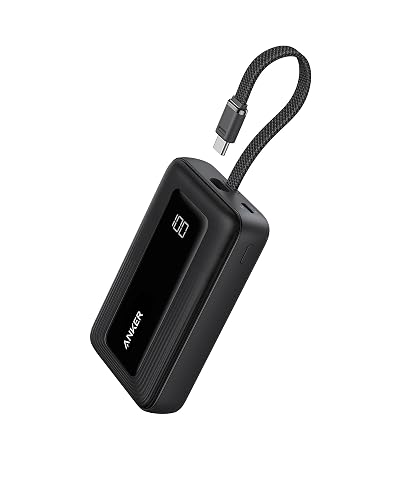
- A portable battery pack if you need to charge away from an outlet, with a USB-C PD output.
Keep the cables short where possible. A shorter cable is less likely to develop internal breaks at the strain points near the connector.
Step 5: Test and Diagnose Charging Problems
If your phone charges slowly or not at all, work through these checks in order. Change only one variable at a time so you know which part is at fault.
- Inspect the port. Use a flashlight to look for lint, pocket fluff or debris inside the Lightning port. Remove it gently with a wooden or plastic toothpick. Never use metal tools.
- Swap the cable. Try a known-good certified cable. If charging recovers, the original cable is the problem.
- Swap the adapter. Plug the cable into a different USB-C power adapter or a computer port. If the charging rate changes, the first adapter is underpowered or faulty.
- Check the wall outlet. Plug the adapter into a different outlet or a surge-protected strip to rule out a weak connection.
- Restart the phone. A simple restart clears many software-related charging stalls.
If none of these steps resolves the issue, the Lightning port or battery may need professional service. Consult an authorized Apple service provider before attempting any repair that involves opening the device.
Common Mistakes to Avoid
- Buying USB-C-only accessories without an adapter. Every iPhone SE needs a Lightning connection on the phone end.
- Using uncertified cables. Cheap cables often lack the data and power handshake the phone expects, leading to slow charging or the “Accessory Not Supported” message.
- Assuming a higher-wattage charger will harm the phone. The phone limits its own intake, so a 20W adapter is safe.
- Bending the cable sharply at the connector. Repeated sharp bends are the most common cause of cable failure.
- Cleaning the port with metal objects. This can short pins and cause permanent damage.
Tips for Better Everyday Charging
- Charge with the phone on a hard, flat surface to improve airflow and reduce heat.
- Remove thick cases during long charging sessions if the phone feels warm.
- Keep a spare cable in your bag or car so a single failure does not leave you without power.
- Label your cables and adapters so you know which ones are certified for fast charging.
Recommended gear
A certified Lightning to USB-C cable is the most useful single purchase for an iPhone SE, since it allows fast charging through a modern USB-C adapter. Look for MFi certification on the packaging.
A USB-C wall adapter with Power Delivery at 20W gives the iPhone SE a proper fast-charge profile and works with other USB-C devices in your home.
A USB-A to Lightning cable is a useful backup for car chargers and older adapters that lack a USB-C port.
FAQ
Does the iPhone SE use USB-C or Lightning?
All iPhone SE models, including the 2016, 2020 and 2022 versions, use the Lightning connector. You need a Lightning cable on the phone end regardless of what your wall adapter uses.
What wattage charger should I use for an iPhone SE?
A USB-C adapter rated at 20W with Power Delivery is a practical choice. The phone will only draw what it can handle, so higher-rated adapters are safe to use.
Can I use a USB-C charger with an iPhone SE?
Yes, but you need a USB-C to Lightning cable to connect the phone to the adapter. A USB-C adapter alone will not plug directly into the phone.
Why does my iPhone SE say “Accessory Not Supported”?
This message usually means the cable or adapter is not certified or has a damaged connector. Try a known MFi-certified cable and clean the Lightning port.
Why is my iPhone SE charging slowly?
Common causes include a 5W or 12W adapter, a non-certified cable, lint in the port or a dirty charging outlet. Work through the diagnostic steps in this guide to isolate the cause.
Is it safe to charge my iPhone SE overnight?
Modern iPhones include optimized charging features that slow the last part of the charge and hold at around 80 percent when you usually charge overnight. Keeping the phone on a hard surface and out of direct heat helps protect battery health.
Can I use a wireless charger with an iPhone SE?
The first-generation iPhone SE does not support wireless charging. The second- and third-generation models do support Qi-compatible wireless charging, so check your model before buying a wireless pad.
Conclusion
Charging an iPhone SE reliably comes down to matching a Lightning connector with a USB-C or USB-A adapter that delivers enough power. Choose certified cables, use a Power Delivery adapter where you can, and keep the port clean. When charging slows or fails, test the cable, adapter, outlet and port one at a time to find the weak link.
Related reading
- Phone Charger iPhone 4: How to Choose and Use the Right One
- 7 Best iPhone Portable Phone Charger Picks for Every Need (2026)
- 7 Best iPhone Phone Charger Cables for Everyday Use (2026)
- 7 Best Portable Cell Phone Chargers for iPhone Picks (2026)
- 7 Best Mobile Phone Charger iPhone Picks Worth Considering in 2026
Ready to choose one?
About Lauren Holland
Lauren Holland is part of our editorial team and reviews and edits our consumer tech how-to & troubleshooting guides, checking product details against manufacturer specifications and owner feedback.