
 By Owen Palmer
Updated November 2026
Shopping for a usb-c hub for macbook air usually comes down to three questions: how many ports you need, whether you want to drive an external display, and how much power the hub passes through to your laptop. This list weighs port mix, display output, pass-through charging wattage, Mac compatibility and recurring owner feedback to narrow the field to six options.
Our top picks at a glance
- 1
 TOP CHOICEBest overallAnker USB-C Hub for MacBook, 7-in-2 Mac DockView on Amazon
- 2
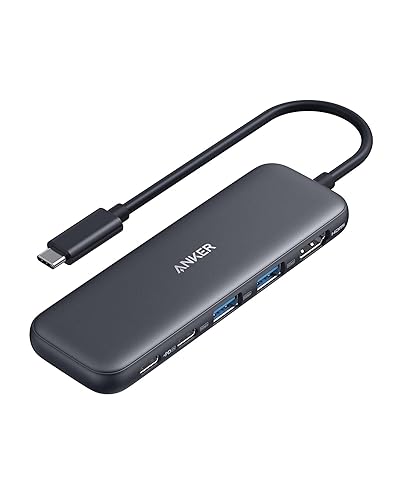 TOP CHOICEBest for charging while dockedAnker USB C Hub, 5-in-1 USBC to HDMI SplitterView on Amazon
- 3
 TOP CHOICEBest for storage and card readersSatechi 7-in-1 USB-C Hub Pro SlimView on Amazon
- 4
 Best for Windows dual monitorsAnker Nano Laptop Docking Station Dual Monitor, 8-in-1View on Amazon
- 5
 Best for high-refresh displaysAnker USB C Hub, Smart Display HubView on Amazon
- 6
 Best for multi-display desksAnker Nano Laptop Docking Station, 13in1 DockView on Amazon
Our Top Picks
| Product | Best for | Key feature |
|---|---|---|
| Anker USB-C Hub for MacBook, 7-in-2 Mac Dock | Everyday desk use | 4K@60Hz HDMI output |
| Anker USB C Hub, 5-in-1 USBC to HDMI Splitter | Charging while docked | 85W max pass-through |
| Satechi 7-in-1 USB-C Hub Pro Slim | Storage and card readers | USB4 and SD card slot |
| Anker Nano Laptop Docking Station Dual Monitor | Windows dual monitors | Dual 4K@60Hz support |
| Anker USB C Hub, Smart Display Hub | High-refresh displays | Dual 2K@240Hz output |
| Anker Nano Laptop Docking Station, 13in1 Dock | Multi-display desks | Three display outputs |
Anker USB-C Hub for MacBook, 7-in-2 Mac Dock
Thunderbolt 4 Compatible, USB-C and 2 USB-A 5Gbps Data Ports, for MacBook Pro, MacBook Air M4/M5 and More (Not Work with Neo) Anker USB-C Hub for MacBook, 7-in-2 Mac Dock with 4K@60Hz HDMI
Best for: Everyday desk use with one external monitor
This suits MacBook Air owners who want a single cable to reach a monitor, a few USB-A devices and a card reader without much fuss.
Pros:
- 4K@60Hz HDMI output for a single external display
- Two USB-A 5Gbps data ports for keyboards and drives
Cons:
- Not compatible with the MacBook Neo, per the listing
Anker USB C Hub, 5-in-1 USBC to HDMI Splitter
85W Max PD, 1 Powered USB-C 5Gbps & 2 Powered USB-A 3.0 5Gbps Data Ports, for MacBook Pro, MacBook Air, Dell and More (Black) Anker USB C Hub, 5-in-1 USBC to HDMI Splitter with 4K Display
Best for: Charging while docked
A good match for people who keep the laptop plugged in all day and want one cable to handle power, display and peripherals.
Pros:
- Up to 85W power delivery pass-through
- Powered USB-C and USB-A ports for demanding accessories
Cons:
- Bulkier than slim hubs, which matters in tight bags
Satechi 7-in-1 USB-C Hub Pro Slim
USB hub, 100W Charging, USB 4, USB 3.2 Gen 2, SD/Micro Card Reader, for Mac, MacBook Air/Pro Satechi 7-in-1 USB-C Hub Pro Slim, 100W Charging, 4K HDMI, USB4, Midnight
Best for: Storage and card readers
Photographers and video editors who move large files off SD cards will find the port mix practical for a desk setup.
Pros:
- USB 3.2 Gen 2 and USB4 data support
- Built-in SD and microSD card readers
Cons:
- Maximum display output depends on the monitor and cable used
Anker Nano Laptop Docking Station Dual Monitor, 8-in-1
Dual 4K@60Hz for DP 1.4, 10Gbps USBC & USBA Data Ports, SD/TF, for Full Functional USB C Windows (Charger Not Included) Anker Nano Laptop Docking Station Dual Monitor,8-in-1 USB C Hub for Windows
Best for: Windows dual monitors
Aimed at users who run a Windows laptop or a Windows partition and want two external screens from a compact dock.
Pros:
- Dual 4K@60Hz display support over DisplayPort 1.4
- SD and TF card slots alongside USB ports
Cons:
- Charger is not included, so a compatible USB-C charger is needed
Anker USB C Hub, Smart Display Hub
Desktop USBC Hub,Dual displays for Windows/Single display for Mac, Dual 2K@240Hz, HDMI+DP,Ethernet,2.3ft Built-in Cable,Grey Anker USB C Hub, Smart Display Hub, Docking Station Dual Monitor,No Charger
Best for: High-refresh displays
Suited to users with a high-refresh monitor who want to take full advantage of its frame rate from a desk setup.
Pros:
- Dual 2K@240Hz output on Windows
- Built-in 2.3ft cable keeps the desk tidy
Cons:
- Single display only on Mac, per the listing
Anker Nano Laptop Docking Station, 13in1 Dock
3 Display USB C Dock (2 HDMI+1 DP), 10 Gbps USBC, 3 USBA, Audio, SD/TF, Ethernet, 100W Max PD for Dell/Lenovo/HP Home Office Anker Nano Laptop Docking Station, 13in1 Dock with Detachable 6in1 USBC Hub
Best for: Multi-display desks
A fit for home offices that run three screens and need Ethernet, audio and several USB devices on one dock.
Pros:
- Three display outputs (two HDMI and one DisplayPort)
- 100W max power delivery and Ethernet port
Cons:
- Larger footprint than a simple hub
Buying Guide
Ports you actually need
Count the devices you plug in daily, such as a drive, a keyboard, a card reader and an Ethernet line. Most hubs list their port mix, so match that list to your workflow before looking at extras.
FAQ
Will a USB-C hub work with my MacBook Air?
Most USB-C hubs designed for Mac will work with a MacBook Air, but compatibility depends on the model and the hub’s Thunderbolt or USB4 support. Check the listing for specific MacBook Air generations before you buy, since some hubs are built for Pro models or exclude newer Air versions.
Do I need a hub with Thunderbolt 4 or USB4?
You need Thunderbolt or USB4 if you want to run high-resolution external displays or use fast storage through the hub. Basic USB-C hubs with only USB-A and standard USB-C ports are fine for keyboards, mice, flash drives and simple file transfers.
How many external displays can a MacBook Air drive through a hub?
Many MacBook Air models support a single external display through a hub, while some hubs advertise dual-display output that depends on the chip and macOS settings. Confirm the supported display count for your specific MacBook Air before counting on two monitors.
Do I need a hub that passes through charging power?
Yes, if you want to keep your MacBook Air plugged in while using peripherals, look for a hub with power delivery pass-through. Check the maximum wattage the hub supports and make sure it meets or exceeds what your laptop’s charger provides.
Is a powered hub better than a bus-powered one?
A powered hub uses its own power supply, which helps when you connect devices that draw a lot of current, such as external hard drives or multiple accessories. A bus-powered hub draws everything from the laptop and is more portable, but it can struggle with heavier loads.
Which hub should I choose if I only need extra ports?
If you mainly need a few additional USB-A and SD card slots without an external monitor, a simpler multi-port hub is usually enough. Pick the option with the port mix that matches your daily accessories so you avoid paying for display features you won’t use.
Conclusion
If you want a compact hub for everyday ports and a single external display, the simpler multi-port options in this list suit most MacBook Air owners well. Choose a hub with Thunderbolt or USB4 and stronger pass-through charging if you run multiple monitors or heavy accessories from your desk.
For a full desk setup with several displays and many ports, the larger docking stations are the better fit, while the slim, portable designs work best for travel and light office use. Match the port count, display support and charging wattage to your real workflow, and the right pick will be clear.
Related reading
- USB C Hub for iPad Air: How to Choose and Connect One (Step-by-Step)
- 4 Best USB C Hubs for MacBook Picks Compared (2026)
- 4 Best Macbook USB Type C Hub Picks for Every Setup (2026)
- Usb-c Hub for Steam Deck: What to Buy, What to Avoid, and Why
- Usb C Hub for Chromecast: Does It Work and Which Setup to Use?
About Owen Palmer
Owen Palmer is part of our editorial team and reviews and edits our consumer tech how-to & troubleshooting guides, checking product details against manufacturer specifications and owner feedback.


