By Owen Palmer
Updated November 2026
Choosing a macbook usb type c hub comes down to which ports you actually need every day: extra USB-A for older drives, HDMI or DisplayPort for external monitors, SD cards for photographers, or pass-through charging for a Mac that stays plugged in. The picks below were selected by reviewing manufacturer specifications, brand track record, and patterns in owner feedback, with attention to power delivery wattage, video output limits, and Mac compatibility.
Best overall: Anker USB C Hub, 5-in-1 USBC to HDMI Splitter – View on Amazon
Best for SD card and travel: Hiearcool 7-in-1 USB C Hub – View on Amazon
Best for 4K external displays: Anker USB-C Hub for MacBook, 7-in-2 Mac Dock – View on Amazon
Best for budget port expansion: 7-in-1 USB C Hub Aluminum USB 3.0 – View on Amazon
Our Top Picks
| Product | Best for | Key feature |
|---|---|---|
| Anker USB C Hub, 5-in-1 USBC to HDMI Splitter | Overall daily use | 85W pass-through charging |
| Hiearcool 7-in-1 USB C Hub | Travel and card reading | SD and TF card readers |
| Anker USB-C Hub for MacBook, 7-in-2 Mac Dock | External 4K displays | 4K@60Hz HDMI output |
| 7-in-1 USB C Hub Aluminum USB 3.0 | Budget port expansion | Seven ports, aluminum body |
Anker USB C Hub, 5-in-1 USBC to HDMI Splitter
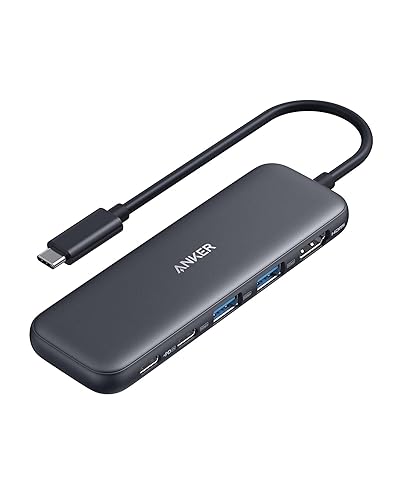
85W Max PD, 1 Powered USB-C 5Gbps & 2 Powered USB-A 3.0 5Gbps Data Ports, for MacBook Pro, MacBook Air, Dell and More (Black) Anker USB C Hub, 5-in-1 USBC to HDMI Splitter with 4K Display
Best for: Overall daily use with one charging cable and one monitor.
This suits people who want a single, dependable hub that pairs power delivery with the ports most desk setups need. Manufacturer specifications list 85W Max PD passthrough, one powered USB-C 5Gbps port, and two powered USB-A 3.0 5Gbps ports.
Pros
- 85W passthrough charging for larger MacBook Pro models
- Powered USB-A ports keep external drives stable
Cons
- Bulkier than minimalist dongles
Hiearcool 7-in-1 USB C Hub

4K@30Hz HDMI, 100W PD, 5Gbps USB 3.0 and SD/TF Card Readers in a Durable Plug-and-Play Aluminum Design for Work and Travel Hiearcool 7-in-1 USB C Hub, USB C Dongle Compatible for MacBook, Space Gray
Best for: Travel and SD card reading on the road.
This suits photographers and frequent travelers who need card slots alongside HDMI and USB ports in a compact, plug-and-play body. The listing specifies 4K@30Hz HDMI, 100W PD, and 5Gbps USB 3.0.
Pros
- Built-in SD and TF card readers
- Compact aluminum design
Cons
- HDMI tops out at 30Hz, which may feel limiting for smooth desktop use
Anker USB-C Hub for MacBook, 7-in-2 Mac Dock

Thunderbolt 4 Compatible, USB-C and 2 USB-A 5Gbps Data Ports, for MacBook Pro, MacBook Air M4/M5 and More (Not Work with Neo) Anker USB-C Hub for MacBook, 7-in-2 Mac Dock with 4K@60Hz HDMI
Best for: Driving an external 4K display at higher refresh rates.
This suits users with a 4K monitor who want 60Hz output rather than 30Hz. The listing names Thunderbolt 4 compatibility and 4K@60Hz HDMI, and notes it does not work with the MacBook Neo.
Pros
- 4K@60Hz HDMI output
- Thunderbolt 4 compatible on supported Macs
Cons
- Not compatible with the MacBook Neo
7-in-1 USB C Hub Aluminum USB 3.0

7-in-1 hub: 1x USB 3.0 + 4x USB 2.0 + 2x USB-C, 5Gbps transfer, Plug and play, Aluminum casing, For MacBook/PC/iPad/Xbox/PS4 7-in-1 USB C Hub Aluminum USB 3.0 for MacBook PC iPad
Best for: Budget port expansion with several USB connections.
This suits buyers who need more ports for keyboards, drives, and accessories without paying for advanced video features. The listing describes one USB 3.0, four USB 2.0, and two USB-C ports with 5Gbps transfer.
Pros
- Seven ports for accessory-heavy desks
- Aluminum casing for heat dissipation
Cons
- Most ports are USB 2.0, so it is slower for large file transfers
Buying Guide
Check your MacBook model and port type
Confirm your Mac supports the video and charging standards the hub uses, since Thunderbolt 4 and some display modes depend on the specific model. Apple’s own support pages list the ports each MacBook provides.
Match power delivery to your charger
A hub with 85W passthrough can charge a MacBook Pro more reliably than one rated for lower wattage. Check the wattage your Mac’s charger supplies, because a hub cannot deliver more than the power source provides.
Decide between HDMI refresh rates
If you use a 4K monitor for long sessions, 60Hz output is noticeably smoother than 30Hz. Look for the refresh rate named in the specifications rather than just the resolution.
Count the ports you use every day
List your USB-A devices, card formats, and display needs before buying. Extra ports are useful, but a hub with ports you never use adds bulk to your desk.
Good picks for this: Anker USB C Hub, 5-in-1 USBC to HDMI Splitter and Anker USB-C Hub for MacBook, 7-in-2 Mac Dock
FAQ
Does a macbook usb type c hub work with every MacBook?
Most hubs work with any MacBook that has a USB-C port, but features such as Thunderbolt 4 or 60Hz display output depend on the Mac model. Always check the listing’s compatibility notes before buying.
Can a hub charge my MacBook while I use the ports?
Many hubs offer passthrough charging, but the delivered wattage depends on the hub’s rating and your charger. Confirm the passthrough wattage in the specifications.
Related reading
- USB Type C Hub with HDMI: How to Choose and Connect One (Step-by-Step)
- USB Hub USB Type C: USB-A Hub vs USB-C Hub (2026): Which Should You Choose?
- Usb-c Hub for Steam Deck: What to Buy, What to Avoid, and Why
- Usb C Hub for Chromecast: Does It Work and Which Setup to Use?
About Owen Palmer
Owen Palmer is part of our editorial team and reviews and edits our consumer tech how-to & troubleshooting guides, checking product details against manufacturer specifications and owner feedback.