 By Colin Foster
Updated November 2026
A hewlett packard pavilion laptop is one of the most widely sold consumer lines from HP, which means there are many model generations, chassis types and component variations in circulation. This guide walks you through identifying your exact model, confirming its specifications, and working through the most common faults so you know whether you need a simple setting change, a replacement part or a repair appointment.
Step 1: Identify Your Exact Pavilion Model
Pavilion is a product line, not a single machine. Before you troubleshoot or shop for parts, you need the full model number, because a charger, battery or keyboard that fits one Pavilion may not fit another. Most owners find the model name in one of these places:
- The bottom label: Flip the laptop over and look for a white or silver sticker. The product number usually starts with letters followed by digits, such as a 15-cs or 14-bk series code.
- The system information screen: Press Windows key + R, type msinfo32 and press Enter. The System Model field lists the model.
- The BIOS or setup menu: Restart and press Esc or F10 during startup to view the system information page.
Once you have the model code, you can cross-reference it with HP’s support site or a dedicated spec guide. For a deeper walkthrough on reading those labels, see HP Laptop Hewlett Packard: How to Identify Your Model and Find Specs (2026). If your model code points to a specific sub-series, HP Pavilion Laptop 14 BK0xx: Specs, Identification and Fixes (2026) and Hp Pavilion Laptop 15 Cc5xx Review: Features and Performance cover two common generations in detail.
Step 2: Confirm Key Specifications
Knowing the specs matters for troubleshooting, upgrades and buying accessories. Record the following before you start:
- Processor family (Intel Core, AMD Ryzen or Intel Celeron/Pentium on budget models)
- Installed RAM and whether it is soldered or upgradeable
- Storage type (SATA SSD, NVMe SSD or older hard drive)
- Screen size and resolution (commonly 14 or 15.6 inches, with 1920 x 1080 as a frequent panel)
- Charger output rating, usually printed on the adapter as a voltage and amperage pair
| Spec | Where to find it | Why it matters |
|---|---|---|
| Model number | Bottom label or msinfo32 | Matches parts, drivers and manuals |
| Charger wattage | Adapter label | Undersized chargers cause slow or no charging |
| RAM type | Task Manager, Performance tab | Determines upgrade compatibility |
| Storage type | Disk Management | Affects replacement drive choice |
Step 3: Troubleshoot Power and Charging Problems
Charging faults are the most frequent complaint with any hewlett packard pavilion laptop, and they are often caused by the adapter rather than the laptop itself. Work through these checks in order:
Check the Adapter and Cable
Inspect the barrel or USB-C plug for bent pins, frayed insulation near the strain relief and discoloration. Confirm the LED on the brick lights when plugged into a known-good outlet. If the adapter is hot to the touch or smells of burning, stop using it immediately. A replacement matched to your model’s rated output is the safe fix. The guide HP Hewlett Packard Laptop Charger: How to Identify, Test and Replace Yours explains how to read the rating and choose a compatible replacement.
Reset the Embedded Controller
If the charger is fine but the laptop does not respond, perform a power reset. Shut down, unplug the adapter, remove the battery if it is user-accessible, hold the power button for 15 seconds, then reconnect and power on. On models with a non-removable battery, the 15-second hold alone is usually sufficient.
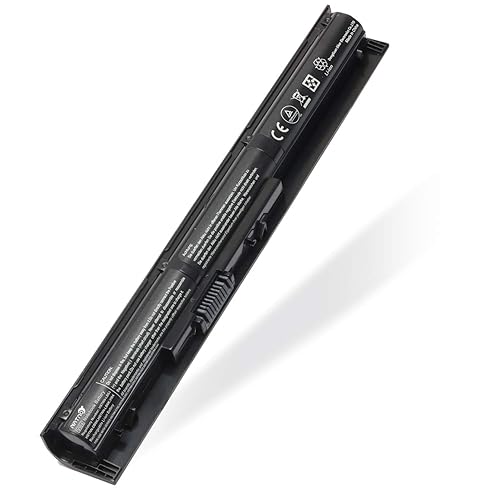
Test the Battery
Open a command prompt and run powercfg /batteryreport. The generated HTML report shows design capacity versus full-charge capacity. A full-charge capacity far below design capacity indicates an aging battery.
Step 4: Diagnose Screen and Display Issues
Screen problems on Pavilion models range from simple brightness settings to failing panels. Start with software before you assume hardware failure. Update the graphics driver from HP’s support site, check that the display is set to the native resolution, and test with an external monitor. If the external display works normally, the fault is in the internal panel or its cable. Common visual symptoms include horizontal lines, color tinting and flickering when the lid is moved. Flickering that changes with lid angle often points to a loose or pinched display cable. For a broader list of causes, consult Problems with HP Laptop Screen: 7 Causes and Fixes to Try First.
Step 5: Address Startup and Keyboard Faults
If the laptop powers on but shows no image, listen for beep codes and check whether the fans spin. Unexpected keyboard behavior, such as dead keys or stuck modifiers, can often be fixed by disabling filter keys in Accessibility settings or updating the keyboard driver. Dead keys across multiple rows suggest a ribbon cable problem, which requires opening the case.
Common Mistakes
- Buying a charger by plug shape alone. Matching the barrel size is not enough. Voltage and wattage must meet or exceed the original rating.
- Ignoring BIOS updates. Power management and battery fixes are sometimes delivered only through firmware.
- Opening the case without a model-specific guide. Pavilion internals vary widely between generations, and screw sizes differ.
- Running the laptop on a damaged battery. A swollen battery can press against the trackpad or case. Stop using it and arrange safe disposal.
Tips for Keeping Your Pavilion Running Well
- Keep the vents clear and use the laptop on a hard, flat surface to aid cooling.
- Avoid leaving the battery at 100 percent or near 0 percent for long periods when stored.
- Store the original charger with its cable wrapped loosely to prevent strain at the plug.
- Run a full system update through HP Support Assistant every few months.
Recommended gear
These items help with the most common maintenance and diagnosis tasks on a Pavilion laptop.
- A USB-C power meter: Useful for confirming how many watts a replacement adapter actually delivers under load. View on Amazon
- A precision screwdriver set: Small Phillips and Torx bits are needed to access most Pavilion bottom panels safely. View on Amazon
- A replacement laptop charger matched to your model: Choose one that meets the original voltage and wattage rating printed on your existing adapter. View on Amazon
FAQ
How do I find the model number on a hewlett packard pavilion laptop?
Check the sticker on the underside of the laptop or run msinfo32 from the Run dialog. The System Model field shows the full model code.
Why is my Pavilion charging slowly?
The most common cause is an underrated or failing adapter. Confirm the wattage matches the original rating and inspect the cable for damage.
Can I upgrade RAM in a Pavilion laptop?
Many Pavilion models have one or two SODIMM slots, but some newer thin models use soldered memory. Check your model’s specifications before buying modules.
Does a Pavilion laptop need a special charger?
It needs a charger that meets the voltage and wattage in the original specification. Using an incorrect output can damage the battery or charging circuit.
How do I know if my battery needs replacing?
Run powercfg /batteryreport and compare full-charge capacity with design capacity. A large gap, short runtime or swelling are all signs to replace it.
Why does my screen flicker on a Pavilion?
Flicker can come from a driver issue, a loose display cable or a failing panel. Test with an external monitor to narrow the cause.
Should I repair or replace an older Pavilion?
If the repair cost is a large share of the laptop’s value or the processor is very dated, replacement often makes more sense. Weigh the age of the machine against the specific fault.
When should I contact a professional repair service?
If the laptop shows signs of liquid damage, a swollen battery, burning smells or persistent faults after basic checks, consult a qualified repair technician to avoid further damage or safety risks.
Conclusion
Identifying your exact hewlett packard pavilion laptop model is the foundation for every fix, from choosing the right charger to ordering a replacement panel. Start with simple checks on the adapter and battery, then move to software and display diagnosis before considering hardware work. When a repair looks risky, a qualified technician is the safer route.
Ready to choose one?
About Colin Foster
Colin Foster is part of our editorial team and reviews and edits our consumer tech how-to & troubleshooting guides, checking product details against manufacturer specifications and owner feedback.